JSON and XML File Conversion: I Added Direct Shortcuts to My Tool
Convert JSON and XML files offline with Qudo JSON Toolbox. Learn about file import, attributes, arrays, type inference, and one-click reverse conversion.
I recently added two direct shortcuts to Qudo JSON Toolbox: JSON to XML and XML to JSON.
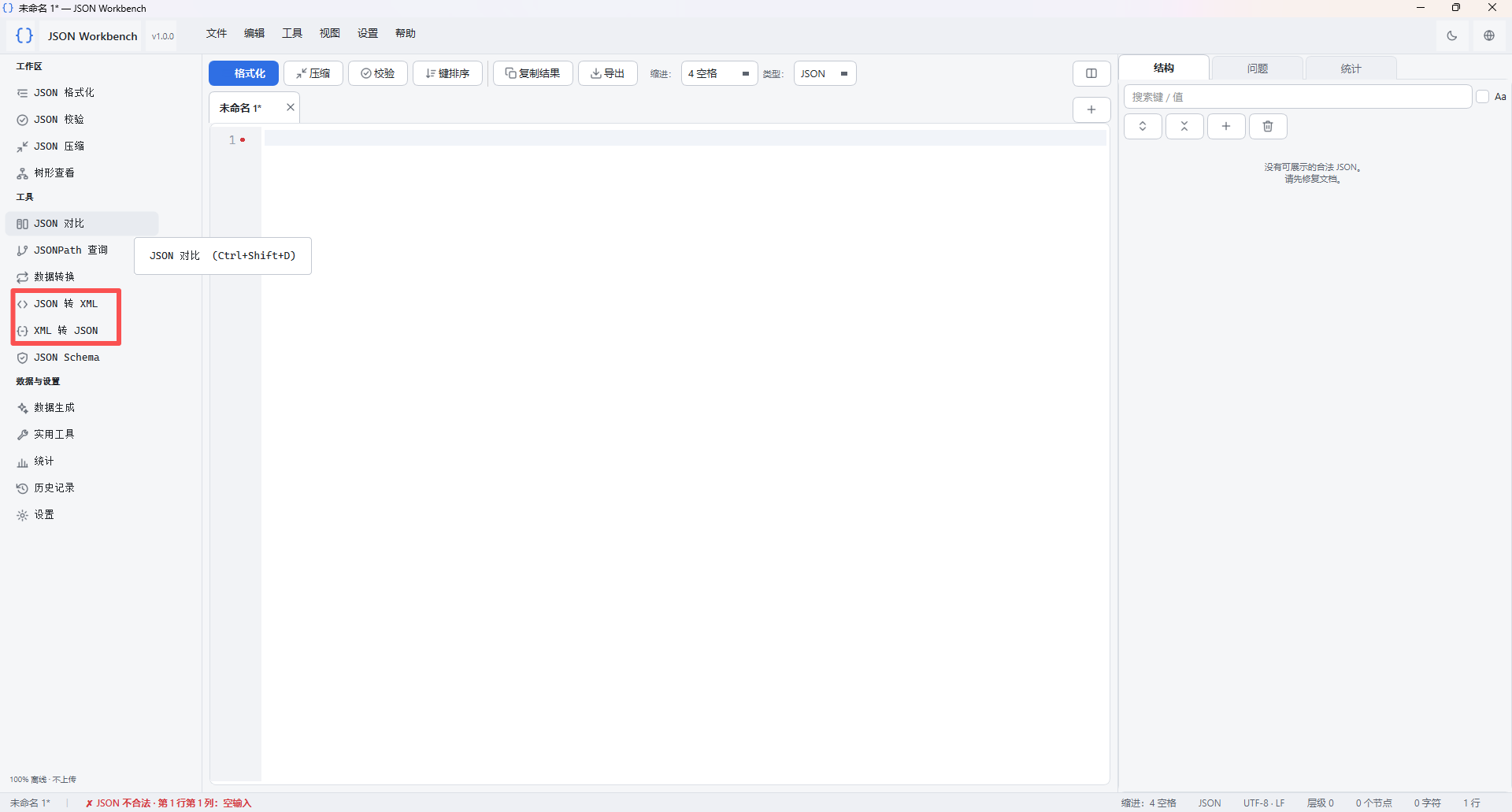 Both conversion options were already available in the Data Converter dropdown. But using them meant opening that page and finding the right option in the list each time. Now they’re in the sidebar. Click one, paste your content or open a file, adjust the settings, and convert.
Most of the data I work with during API debugging is JSON, but some systems still use XML. Connecting the two takes more than copying field names across. Attributes, arrays, and data types need attention too.
Converting JSON to XML Starts With the Root Element
Take this JSON document:
{
  "user": {
    "@id": 7,
    "name": "张三",
    "active": true
  },
  "tags": ["a", "b"]
}
Choose JSON to XML in the sidebar and paste the content, or click Open input to load a local file.
The default root element is root. You can change it to match the API you’re working with. The converted output looks roughly like this:
<?xml version="1.0" encoding="UTF-8"?>
<root>
  <user id="7">
    <name>张三</name>
    <active>true</active>
  </user>
  <tags>a</tags>
  <tags>b</tags>
</root>
There are two conventions to note here.
Keys beginning with @ become XML attributes, so @id becomes id="7". Arrays are represented according to their structure; in this example, the two tags become two <tags> elements.
You can configure the attribute prefix, root element, and array item element name in the interface. If the receiving system expects a particular format, set those options before converting.
Converting XML Back to JSON: Attributes and Repeated Elements
Now consider this XML:
<root>
  <user id="1">Alice</user>
  <user id="2">张三</user>
</root>
Choose XML to JSON, paste the content or open the file, then click Convert. The result is:
{
  "user": [
    {
      "@id": 1,
      "#text": "Alice"
    },
    {
      "@id": 2,
      "#text": "张三"
    }
  ]
}
Repeated sibling elements with the same name become an array. Attributes use the @ prefix by default, while the element’s own text is stored under #text.
The outer root element acts as a container here. It doesn’t add another named property around the JSON result. That’s worth checking before passing the output to another API.
Sometimes Type Inference Should Be Turned Off
XML element text doesn’t distinguish numbers, booleans, and strings in the same way JSON does.
For example:
<root>
  <code>123</code>
  <active>true</active>
</root>
With type inference enabled, the result is:
{
  "code": 123,
  "active": true
}
But if code is a business identifier and the API requires a string, turn off type inference. The values will remain strings:
{
  "code": "123",
  "active": "true"
}
There isn’t one setting that suits every file. It depends on what the fields mean in your application.
You Can Reverse the Conversion Without Copying the Output
I also added a Reverse conversion button.
After converting JSON to XML, clicking it uses the output as the next input, switches to XML-to-JSON mode, and runs the conversion. It makes checking a round trip easier without another round of copying and pasting.
You can copy the output, save it as an .xml or .json file, or send it to the editor for further changes.
Changing the conversion direction or editing the input clears the previous output, so you don’t accidentally save an old result as though it came from the current operation.
A Round Trip Doesn’t Guarantee Everything Stays Identical
I haven’t treated this as something you can run without checking the result.
JSON’s empty arrays, empty objects, and null values don’t have exact equivalents in XML. To preserve those types, the exported XML may include type metadata or namespace declarations. Those markers help the tool read the data back, but you still need to check whether another system accepts that format.
XML namespaces and mixed text content can also change during conversion. The tool reports relevant warnings. Review the output, especially if you’re about to use it in an API request.
JSON containing duplicate keys is blocked from conversion to avoid overwriting earlier values. XML input containing DTDs or external entities is rejected as well.
It’s Included in the Latest Build
This update puts both conversion directions directly in the sidebar, adds local file opening and reverse conversion, and includes regression tests for the new workflow.
All processing still happens locally. No account is required, and files aren’t uploaded.
If you mostly work with JSON but occasionally need to connect to an XML-based system, this gives you a local place to handle the conversion. Generate the output, then check the fields and structure against the API’s requirements. It saves some of the manual work of editing two files side by side.