What Hidden Personal Information May Be in PDF Files?
Document Properties · Comments & Attachments · OCR Text · Hidden Layers · XMP Metadata
Recommended Tool: https://www.qudo.cc/ja/document-privacy-checker
Suitable for anyone who needs to check and clean hidden personal information from PDF files before public release, sharing or submission.
This article helps you understand the various types of hidden information that PDF files may contain and introduces complete checking and cleanup methods. Qudo provides browser-local document privacy inspection and PDF redaction tools.
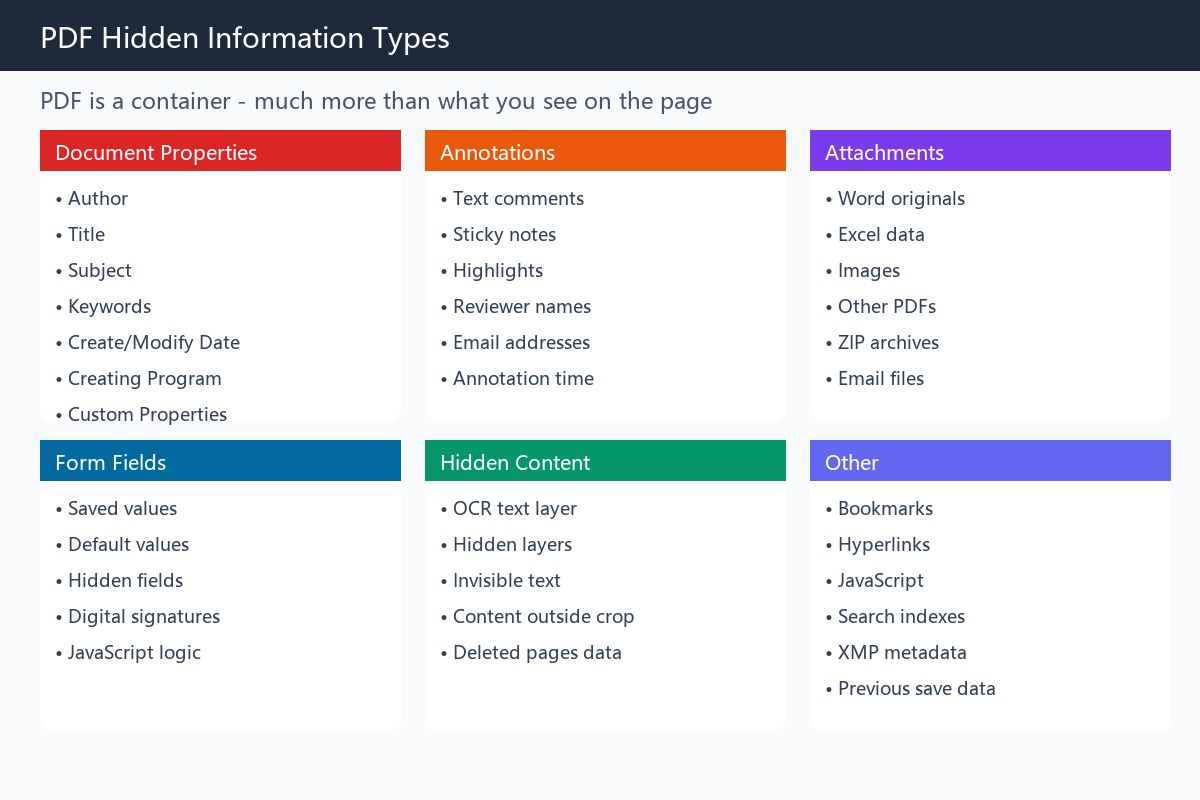
PDF is often considered a 'what you see is what you get' file format: whatever you see when opening it is all the other party can see. In reality, PDF is more like a container. Besides the text and images on the page, it can also store document properties, annotations, attachments, form data, hidden layers, OCR text layers, scripts and data left from previous saves. Much of this information is not directly displayed on the page, but can be read by PDF readers, text extraction tools or document analysis software.
1. Why Do PDFs Contain Hidden Information?
PDFs are usually not created from scratch, but generated from other files or devices, such as: Word document export; Excel spreadsheet export; PowerPoint presentation export; scanner output; mobile scanning app output; CAD or design software export; browser print output; electronic signature system output; files saved after multi-person review; multiple PDFs merged together.
During the conversion process, some properties from the source file may be written into the PDF. Subsequent annotations, signatures, form filling and multiple saves may continue to add new information.
Common scenarios:
Word author name
        ↓
Export to PDF
        ↓
PDF author property still retains the name
Or:
Contract sent to colleague for review
↓
Colleague adds comments
↓
Delete displayed comments on page
↓
PDF still retains reviewer name or related objectsWhat PDF can contain is far more complex than what you see on the page. Adobe's list of hidden content types includes metadata, annotations, attachments, form data, hidden text, hidden layers, search indexes, scripts, links, actions, obscured objects and data left from previous saves.
2. Document Properties and Metadata
This is the most common type of hidden information in PDF. Basic document properties may include: title; author; subject; keywords; creation date; modification date; creating program; PDF producing program; copyright information; document identifier; custom properties.
For example, a publicly released project report may only show the company name on the page, but the file properties may show:
Author: Zhang San
Creating program: Microsoft Word
PDF producing program: Adobe PDF Library
Created: 2026-09-18 22:43
Modified: 2026-09-20 01:16
Individually these may seem insignificant, but combined with other public information, one could infer: who created the file; when the file was intensively modified; what software and workflow was used; whether the document came from an internal template; whether the publisher and actual author are different.
XMP Metadata: Besides basic document properties, PDF may also contain XMP metadata. XMP can store: author; creating tool; editing software; copyright status; rights statement; document version; workflow information; custom fields; application-specific information.
Sometimes the normal 'Document Properties' window appears cleared, but the XMP area still retains related information. Therefore, modifying the author field does not equal completing full metadata cleanup.
3. Annotations, Comments and Reviewer Information
During review, PDF may have added: text annotations; sticky notes; highlights; underlines; strikethroughs; stamps; handwritten marks; drawn graphics; annotation replies; files attached as annotations.
These may contain: reviewer name; email address; annotation time; modification suggestions; internal discussions; unpublished prices; client names; legal opinions; approval results; file attachments.
For example, the contract body has been finalized, but the annotations still retain:
Manager Li: Don't show this quote to the client yet.
Even if the annotation panel is not open by default, the recipient can still view them through the 'Comments' or 'Annotations' function.
Important note: Hiding annotations and deleting annotations are not the same operation. Closing the annotation display only temporarily hides them from the page; it does not delete them from the PDF.
4. Personal Information in Form Fields
Fillable PDFs usually contain form fields such as: name; phone number; ID number; home address; email; bank account; date; signature; dropdown options; checkboxes.
Form field issues: The page may look empty, but internally still contains values. Fields may contain: current value; default value; previously filled value; calculation results; hidden fields; field hint text; JavaScript calculation logic.
Form fields can be re-edited. If you only display the form appearance without properly clearing or processing fields, the other party may click on fields to view data.
Signature fields may carry identity information. Digital signatures may contain: signer name; organization name; email; certificate authority; certificate serial number; signing time; signing reason; signing location; verification information.
If the PDF has legal effect or requires digital signature verification, cleanup operations may invalidate the signature.
5. PDF Attachments and Embedded Files
PDF can carry attachments like email. Attachments may include: Word drafts; Excel details; original images; identity documents; contract attachments; email files; other PDFs; ZIP archives; XML data; audio or video; files attached to annotations.
The page may only display a processed report, but the attachments retain the complete data.
Example:
Page body: Only shows summarized customer count
PDF attachment: Contains Excel spreadsheet with customer names, phone numbers and ID numbers
If you don't open the attachment panel, it's easy to overlook this content. Merged, archived, PDF portfolios and PDFs exported from email systems especially need to be checked for attachments.
6. Text Covered by Black Rectangles
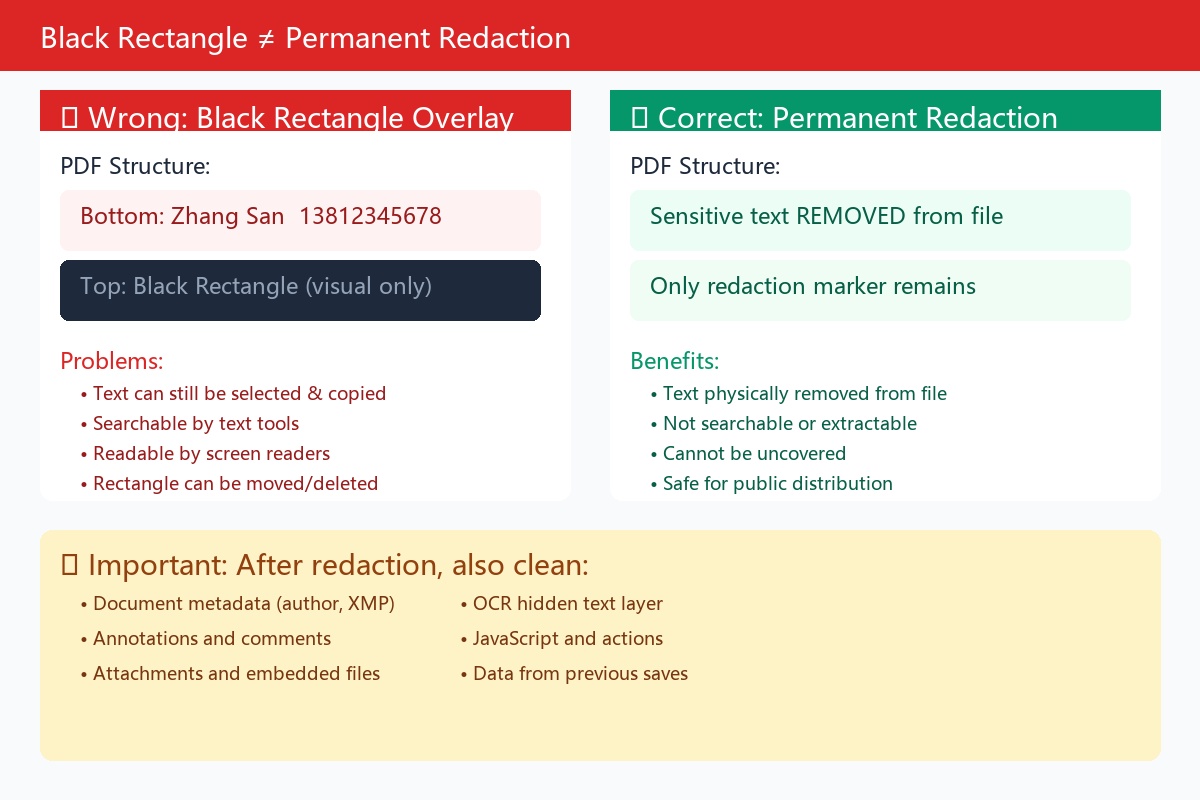
Drawing a black rectangle over text does not necessarily mean the text has been deleted.
The PDF page may simultaneously retain:
Bottom layer: Zhang San 13812345678
Top layer: Black rectangle
The naked eye can only see the black area, but the underlying text may still be: selected; copied; searched; extracted; read by screen readers; identified by PDF analysis tools.
If the black rectangle belongs to an annotation or graphic object, the recipient may also be able to move or delete it.
True PDF redaction should remove sensitive text or images from the file structure, not just add visual obstruction. After redaction, hidden data still needs separate cleanup, because redaction mainly handles page content; metadata, attachments and scripts need further cleaning.
7. OCR Hidden Text Layer
Scanned PDFs look like images, but many scanning programs perform OCR text recognition. After OCR, the PDF may contain two layers of content:
Top layer: Scanned image
Bottom layer: Transparent OCR text
The transparent text enables scanned documents to be: searched; copied; read aloud; indexed. This is normal functionality, but easily overlooked in privacy processing.
For example, a user covers an ID number on a scanned image, but the OCR text layer still stores the complete number. Text extraction tools can directly read the underlying text without recognizing the page image.
When checking scanned PDFs, you should: 1. Try selecting page text; 2. Copy and paste into a text editor; 3. Search for sensitive numbers; 4. Use PDF text extraction tools to check; 5. Confirm redaction operations also processed the OCR text layer.
8. Content Outside Page Crop Area
PDF cropping often only changes the visible range of the page, without deleting objects outside the crop area.
For example, the original page has on the right side: customer name, phone number, internal notes. After the user reduces the page visible range, this content is no longer displayed, but may still exist in the PDF page object.
Some tools can: restore the original crop range; view page boundaries; extract page objects; readjust CropBox or MediaBox. This way, 'cropped out' content may reappear.
Therefore, 'cropping pages' cannot replace deleting sensitive content. Objects that need to be kept confidential should be truly removed, not just placed outside the visible area.
9. Hidden Text and Invisible Objects
Text in PDF may be invisible for the following reasons: font color same as background; transparency set to zero; covered by other objects; located outside the page; extremely small font size; placed in an invisible layer; set to not print; using special blend modes; hidden by clipping paths.
This content may still be: found by full-text search; extracted; copied; indexed; read by assistive technology.
Adobe classifies transparent text, text covered by other content, and text with the same color as the background as hidden text types.
10. Hidden Layers
PDFs generated by CAD, architectural drawings, maps, design files and typesetting software may contain multiple layers.
Different layers can store: annotations; dimensions; pipelines; internal structures; draft marks; client versions; approval information; original designs; hidden text.
PDF readers only display some layers by default, but users may reopen hidden content in the 'Layers' panel.
Adobe Acrobat allows users to show, hide and reset PDF layers, so 'turning off layers' cannot be treated as safe deletion. If layer functionality is not needed, hidden layers should be deleted, and visible layers confirmed to contain no sensitive objects.
11. Bookmarks and Directory Information
PDF bookmarks are not only for jumping to pages; they can also contain text descriptions.
Bookmarks may contain: names; project codes; client names; internal section names; titles of deleted pages; old version table of contents; links to hidden content.
After the page body is modified, bookmarks are not automatically synchronized for cleanup.
For example, the page title has been changed to: Project Description. But the bookmark still shows: XX Client Major Incident Investigation Report.
Before publishing files publicly, the bookmark panel should be opened and checked item by item.
12. Hyperlinks, Actions and JavaScript
PDF can not only display content, but also execute interactive behaviors. Files may contain: web links; email links; internal file paths; network share addresses; open file actions; submit form actions; page open actions; JavaScript scripts; print actions; calculation scripts.
Information that may be leaked:
https://internal.example.local/project/123
file:///C:/Users/zhangsan/Desktop/report.xlsx
mailto:[email protected]
https://example.com/share?token=xxxxxx
Even if the page only shows 'Click to view', the link target may still contain: internal domain names; usernames; file paths; sharing keys; session tokens; client numbers; email addresses; tracking parameters.
Before external release, all links and actions should be checked to confirm they are still needed.
13. Information in Embedded Images
Photos, scans and image objects in PDF may carry: GPS location; camera device model; shooting time; author; copyright information; editing software; XMP metadata; original thumbnails.
Not every PDF generation tool preserves image EXIF, but you cannot assume it will definitely be deleted.
For example: the PDF displays a cropped ID photo; the image internally may still carry the original shooting time; embedded thumbnails may not have been synchronously cropped; PDF attachments may still retain the full original image.
For images with sensitive origins, metadata should be cleaned before inserting into PDF, and the final PDF should be checked.
14. Data Left from Previous Saves
PDF supports incremental saving. When some software modifies PDF, it does not completely rewrite the file, but appends new content and indexes at the end of the file.
This can improve save speed and help with signatures and versioning, but may bring privacy risks: deleted objects may become unreferenced data; old version content may be retained in historical save structures; metadata before modification may still exist; original annotations or objects may not have been physically cleared.
Not all incrementally saved PDFs can recover old content, and you cannot assume leakage exists just because a file was saved multiple times. But for sensitive files to be publicly released, tools that support 'cleanup', 'optimization' or complete rewriting should be used to generate the release version, rather than just performing normal saves.
Adobe's hidden content inspection scope includes data left from previous saves and unreferenced data, indicating these contents do need to be included in pre-release inspection.
15. Embedded Search Indexes
Large PDFs, document collections and archive files may contain search indexes to speed up full-text search.
Search indexes may store: words; page positions; document structure; index records of modified content.
If a word has been deleted from the body text but the search index has not been regenerated or cleaned, related traces may still remain.
Ordinary personal PDFs may not contain embedded search indexes, but large reports, e-books, archives and PDF collections are worth checking.
16. Identity Information in Digital Signatures
Digital signatures are used to prove: who signed the document; whether the document was modified after signing; whether the signing certificate is valid.
Therefore, digital signatures usually must contain certain identity information, such as: signer name; organization; certificate authority; signing time; signing reason; signing location; certificate serial number; verification status.
This information may not constitute 'leakage', as it may be exactly what the digital signature needs to prove. But if the file is to be published anonymously, you need to first determine whether the signature information is suitable for public release.
Important note: Cleaning metadata, deleting objects or re-saving PDF may invalidate existing digital signatures. When dealing with contracts, litigation materials, financial vouchers and formal approval documents, legal and business requirements should be confirmed first.
17. Which Hidden Information Has the Highest Risk?
[High Risk]
ID numbers; bank account and card numbers; home address; phone numbers; medical information; unpublished client data; form saved values; original files in PDF attachments; failed redaction content; OCR hidden text; private keys, passwords or API keys; links with access tokens.
[Medium Risk]
Author and last modifier; annotator names; company and department; internal file paths; internal domain names; hidden layers; review time; creating software; document version information.
[Lower Risk]
Common font information; page size; PDF version; general producing software name; creation time without identity orientation.
Risk is not fixed. The same piece of information may have completely different impacts in different scenarios. For example, 'author name' may need to be retained in a public research report, but could be high-risk information in anonymous complaint materials.
18. How to Manually Check PDF Hidden Information
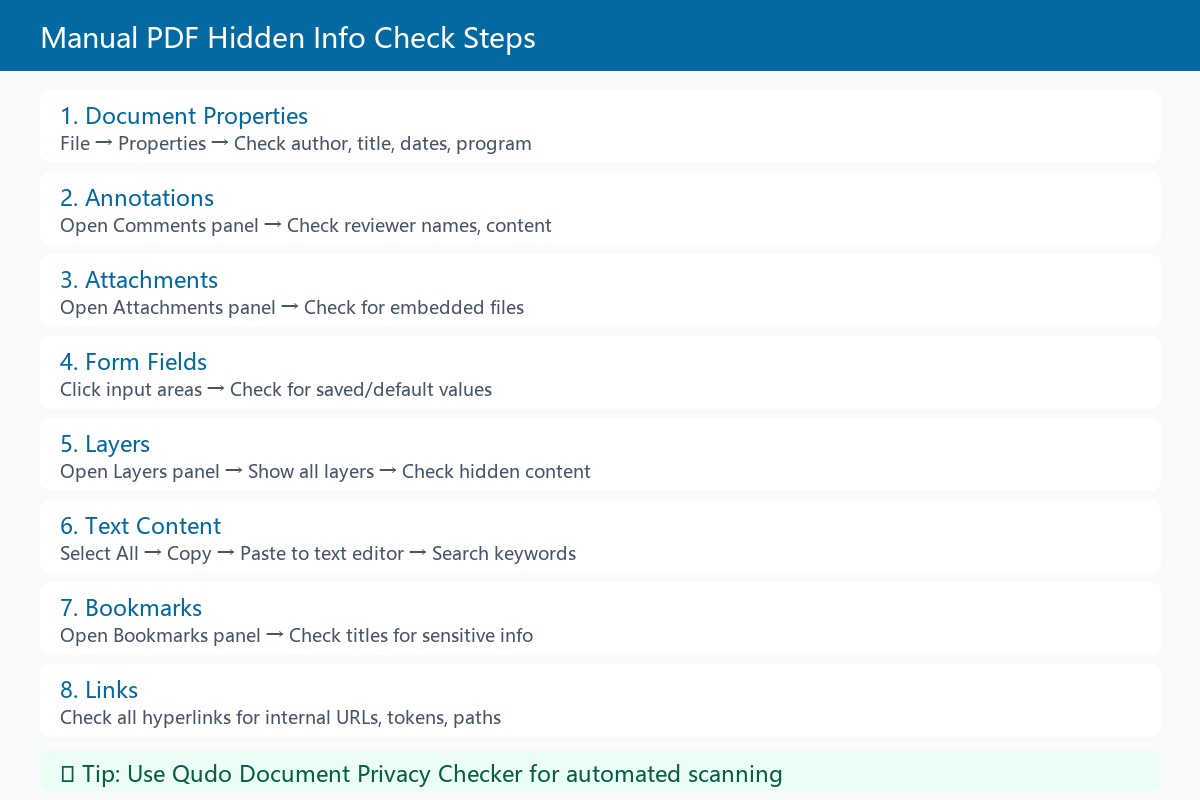
[Check Document Properties]
In Adobe Acrobat, open: File or Menu → Document Properties. Check: title; author; subject; keywords; creation time; modification time; creating program; PDF producing program; custom properties; additional metadata.
[Check Annotations]
Open 'Comments' or 'Annotations' panel, check: annotation content; annotator name; time; replies; stamps; annotation attachments.
[Check Attachments]
Open the attachment panel to confirm existence of: Word files; Excel files; images; other PDFs; archives; emails.
[Check Layers]
Open the layer panel, try showing all layers to confirm no hidden content.
[Check Forms]
Click input areas on the page to check if fields are: still editable; have default values; contain personal information; associated with scripts; carry digital signatures.
[Check Text]
Perform the following: 1. Select all and copy to a plain text editor; 2. Search for names, phone numbers, ID numbers and other keywords; 3. Extract OCR text from scanned documents; 4. Check black covered areas; 5. Check objects outside page boundaries.
[Check Links and Bookmarks]
Check item by item: bookmark titles; web links; email addresses; file paths; tracking parameters; sharing tokens.
19. Using Qudo to Check PDF Hidden Information
You can use Qudo's Document Privacy Check & Clean tool to check PDF. Basic process:
1. Open the document privacy check tool;
2. Select the PDF to check;
3. Wait for the browser to read the file;
4. View document properties and metadata;
5. Check annotations, attachments, forms, links and other items;
6. Select content to clean based on detection results;
7. Generate a new cleaned version;
8. Download the file;
9. Re-import the downloaded PDF into the tool for checking;
10. Open the file to confirm pages and functions are normal.
Files are processed in the current browser; no need to upload to Qudo servers.
If sensitive content like ID numbers, account numbers, names etc. is detected in the page body, the PDF Sensitive Information Permanent Redaction tool should be used.
The two tools serve different purposes:
Document Privacy Check: Check and clean metadata, annotations, attachments and other hidden information.
PDF Permanent Redaction: Remove sensitive text and images from page content.
In actual processing, they usually need to be used together.
20. How to Properly Clean PDF
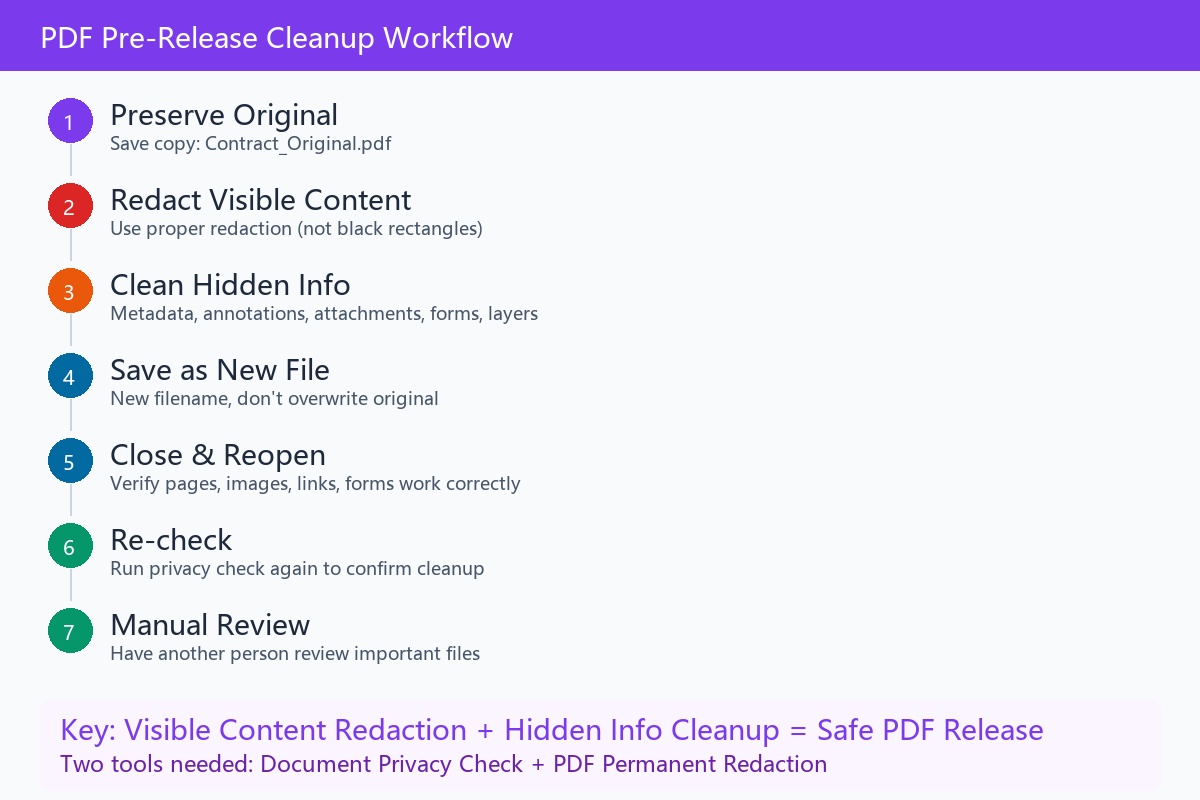
Step 1: Preserve the original file. Do not directly overwrite the original PDF. Recommended to save:
Contract_Original.pdf
Contract_ForRelease_Cleaned.pdf
Step 2: Handle visible sensitive content. Use proper redaction functions to delete: names; phone numbers; addresses; account numbers; signatures; identity documents; faces; QR codes; other content that should not be made public. Do not just add black rectangles.
Step 3: Clean hidden information. Clean according to actual needs: document properties; XMP metadata; annotations; attachments; form data; hidden text; hidden layers; JavaScript; external links; search indexes; unreferenced objects.
Adobe Acrobat distinguishes 'redaction' and 'cleanup' as two steps: redaction handles visible content, cleanup deletes metadata, embedded content, scripts and other invisible items.
Step 4: Save as a new file. Use a new filename; do not overwrite the internal original.
Step 5: Close and reopen. Completely close the editor, then reopen the cleaned file. Check: pages are complete; images are normal; links are still needed; forms work as expected; digital signatures are not invalidated; file can still print normally.
Step 6: Check again. Rerun privacy check to confirm deleted data has not continued to appear.
Step 7: Manual review. Important files should be reviewed by another person. Automated tools can find many common problems, but cannot guarantee understanding all business contexts.
21. Common Misconceptions
PDF has a password set, so hidden information won't leak? Password only controls who can open the file. Those who obtain the password can still read metadata, attachments, forms and annotations in the file.
Printing to PDF can clear all hidden information? Not necessarily. Different print drivers and software handle things differently; text layers, links or other structures may be retained.
Compressing PDF can delete metadata? Not necessarily. Compression mainly handles images and file structure; it may not delete author, XMP, annotations and attachments.
Flattening can solve all problems? No. Flattening is usually used to merge visual effects of annotations, forms or layers, but may not clear metadata, attachments, scripts and historical objects.
After deleting pages, is the page content definitely gone? Not necessarily. It depends on how the editor saves the file. Sensitive files should go through cleanup or complete rewriting, and be rechecked.
Closing layers equals deleting layers? No. Closing only changes display state; recipients may reopen them.
Is deleting the author in file properties enough? Not enough. Author may simultaneously exist in normal properties, XMP, annotations, signatures and custom data.
Scanned PDF has no text, so it's safer? Not necessarily. Scanned versions may contain OCR hidden text, device information, attachments and metadata.
22. PDF Pre-Release Checklist
[Page Content]
☐ No names that should not be public
☐ No ID numbers
☐ No bank account numbers
☐ No home addresses
☐ No signatures and seals
☐ No unprocessed faces
☐ Black covers have completed permanent redaction
☐ No sensitive information in OCR text layer
[Document Properties]
☐ Checked author
☐ Checked title, subject and keywords
☐ Checked creation and modification time
☐ Checked creating software and PDF producing program
☐ Checked XMP metadata
☐ Checked custom properties
[Hidden Content]
☐ Checked annotations and replies
☐ Checked attachments
☐ Checked form values
☐ Checked hidden text
☐ Checked hidden layers
☐ Checked bookmarks
☐ Checked hyperlinks
☐ Checked JavaScript and actions
☐ Checked content outside page crop area
☐ Checked embedded image information
☐ Checked digital signature information
[Final Verification]
☐ Original version has been preserved
☐ Separate release version has been generated
☐ Cleaned file has been closed and reopened
☐ All text has been copied for inspection
☐ Key sensitive words have been searched
☐ Privacy check has been rerun
☐ Opened with another PDF reader
☐ Digital signature status has been confirmed
☐ Important files have been reviewed by a second person
Summary
The hidden information in PDF files goes far beyond just the 'author' field.
The most important content to focus on includes: document properties and XMP metadata; annotations and reviewer information; form fields; file attachments; OCR hidden text; failed black redaction; hidden layers; content outside crop area; links, actions and JavaScript; image metadata; digital signature information; data left from previous saves.
Securely publishing PDF requires handling two parts simultaneously:
Visible sensitive content on the page
+
Invisible hidden information inside the file
A more reliable process is: first preserve the original, permanently redact visible content, then clean metadata, annotations, attachments and other hidden items, finally reopen and recheck the generated new file.