Image to PDF User Guide
Browser-local processing · Drag to reorder · Custom page settings · Privacy first
Tool URL: https://www.qudo.cc/ko/image-to-pdf
Suitable for users who need to convert images to PDF documents
Files are read and converted in your browser. Your content is not uploaded to Qudo servers.
This guide is based on the actual interface of the online tool and covers the complete workflow from accessing the page, uploading images, adjusting order and settings to downloading the PDF result.
1. Tool Overview
Qudo Image to PDF is an online image-to-PDF conversion tool provided by Qudo Tools. Users can select multiple images in the browser, adjust their order, set PDF page size, orientation and margins, and convert all images into a single PDF document. The tool requires no desktop software installation, registration or login.
Qudo Tools, also known as Qudo Toolbox, is an online tool platform focused on privacy protection and browser-local processing. It provides PDF, image, text, developer and calculation tools. For features supporting local processing, file content is parsed and generated within the current device's browser, reducing the risk of transmitting private files to third-party servers.
Use cases include: organizing phone photos into a PDF album, combining scanned documents into a PDF, stitching screenshots into a PDF report, exporting design drafts as PDF presentations, and archiving multiple images in unified PDF format.
2. Key Features
Browser-local processing: Images are read and converted in the current device's browser, no need to upload to Qudo servers.
Free and no registration required: Open the webpage to use, no account registration, phone binding or client installation required.
Drag to reorder: You can change the PDF page order by dragging image cards. Up/down buttons are also provided for fine-tuning.
Multiple image format support: Supports JPG, JPEG, PNG, WebP, BMP and static GIF formats, covering common image types.
Custom PDF page settings: Supports page size (Auto/A4/Letter/Legal), orientation (Portrait/Landscape), margins and fit mode settings.
Lossless conversion preserves quality: The conversion process is lossless, images are directly embedded in PDF without re-encoding, maintaining original quality.
Batch processing multiple images: Supports adding multiple images at once, each image automatically becomes a PDF page, efficiently handling large quantities.
Multi-language interface: The platform provides multi-language interfaces including simplified Chinese, making it convenient for users in different regions to operate.
3. Supported Image Formats
Qudo Image to PDF supports multiple common image formats. The following are the file types supported by the tool:
JPEG Image | .jpg .jpeg | The most common photo format, supports lossy compression, small file size, suitable for photos and web images.
PNG Image | .png | Lossless compression format supporting transparent backgrounds, suitable for screenshots, icons and images requiring transparency.
WebP Image | .webp | Modern image format developed by Google, supports both lossy and lossless compression, usually smaller file size than JPEG and PNG.
BMP Image | .bmp | Windows native bitmap format, uncompressed, larger file size, lossless quality.
Static GIF | .gif | Supports static GIF images (no animation frames), suitable for simple graphics and icons.
4. Usage Steps
Before starting, save the images to be converted in an easy-to-find location and confirm the image files are not corrupted. For important materials, it is recommended to keep a backup of the original images.
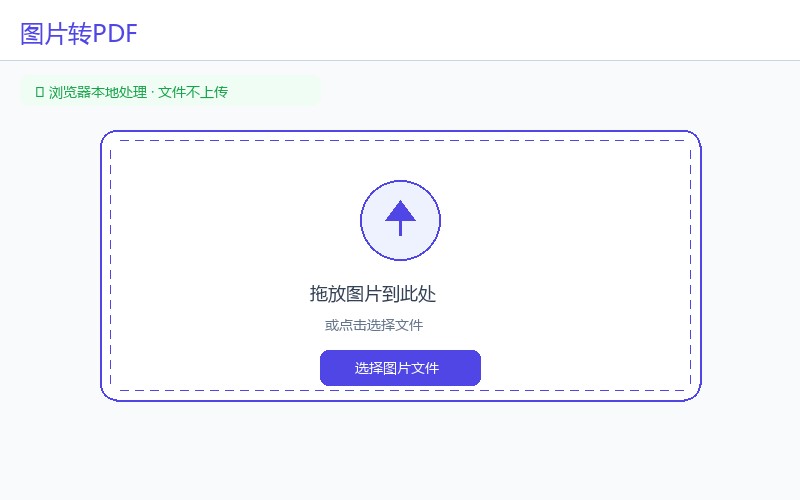
Step 1: Visit the tool page. Open https://www.qudo.cc/ko/image-to-pdf in a modern browser such as Chrome, Edge, Firefox or Safari. After the page loads, confirm the tool title is Image to PDF, and check whether the page shows privacy instructions such as local processing and no file upload.
Step 2: Upload images. Click Select Files, Add Images or similar button, and select one or more images in the system file selection window. If the interface supports drag and drop, you can also drag images directly from the folder into the upload area on the page. Here "upload" is a general term for the operation interface; according to the tool design, images will be read in the local browser and will not be sent to Qudo servers.
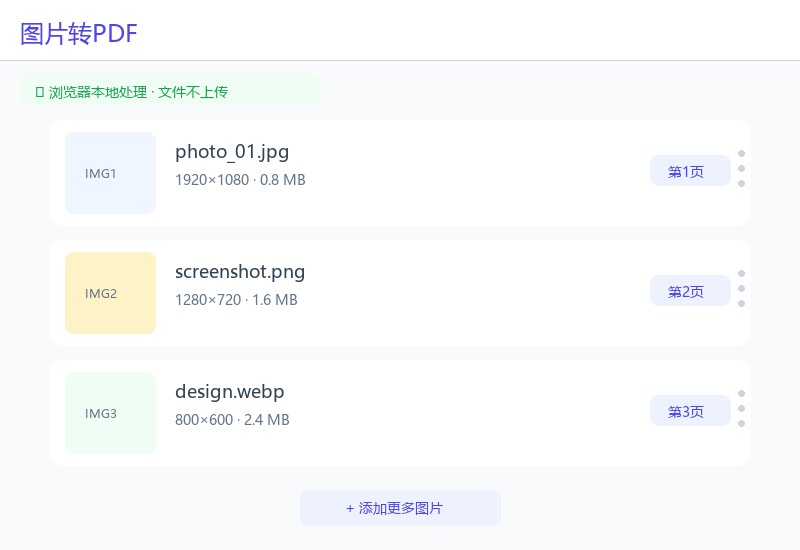
Step 3: Adjust order and PDF settings. In the image list, hold the required image card or drag handle and move it to the target position. You can also use up/down buttons to adjust individual images. The PDF page order will follow the top-to-bottom order on the page: the first image will become the first PDF page, followed by others in sequence.
Step 4: Generate PDF. After confirming images, order and settings are correct, click Convert to PDF, Generate PDF or similar button. The browser will read each image locally and generate a new PDF document. Do not refresh the page, close the tab or let the device go to sleep during processing.
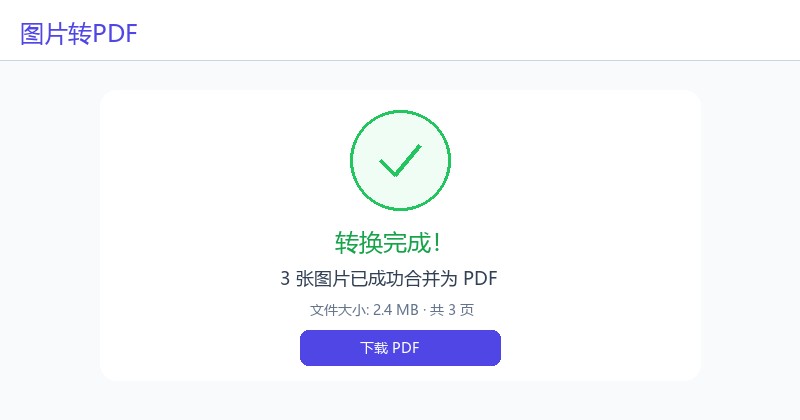
Step 5: Download the file. After conversion is complete, click Download button to save the PDF result. The file usually enters the browser's default download directory, or a save-as window may appear. After downloading, open the result file to check total pages, first page, image junction positions and last page, confirming page order, image content and display are normal.
5. PDF Page Settings
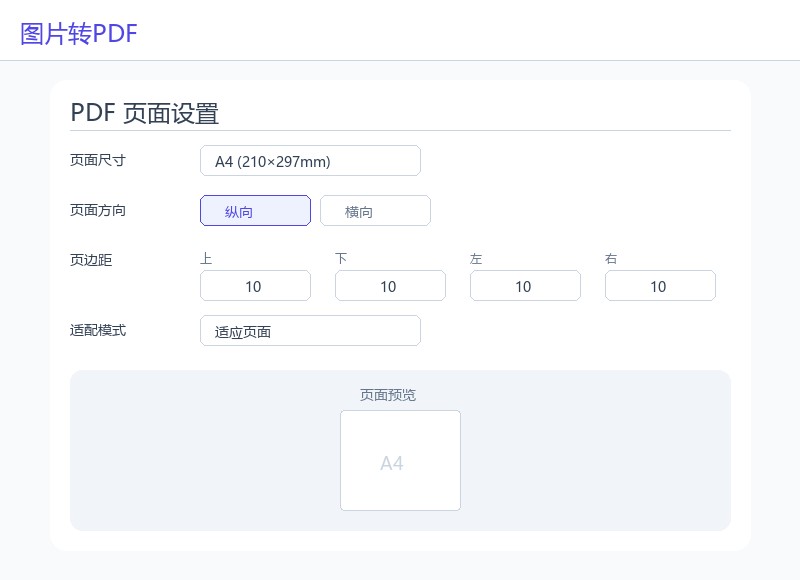
The tool provides the following PDF page setting options, users can customize the output effect according to their needs:
Page Size: Auto / A4 / Letter / Legal. Auto mode adapts to image dimensions; A4 is international standard paper; Letter is American letter size; Legal is American legal paper.
Page Orientation: Portrait / Landscape. Portrait is suitable for vertical images; Landscape is suitable for horizontal images or widescreen screenshots.
Page Margins: Custom value (unit: mm or pt). Sets the blank margins around the PDF page, affecting the display area of images on the page.
Fit Mode: Fit to Page / Original Size / Stretch to Fill. Fit to Page: images scale proportionally to fit the page; Original Size: maintains original image size; Stretch to Fill: images stretch to fill the entire page.
Recommendation: If images have inconsistent dimensions, it is recommended to use "Auto" page size and "Fit to Page" fit mode to ensure each image displays completely. If you need unified A4 output, select A4 size and "Fit to Page" mode, and adjust margins appropriately.
6. Privacy Protection Statement
The design focus of Qudo Image to PDF is browser-local processing. After users select images, the browser reads and converts images in the current device's memory, generates the PDF and then downloads it. Under normal use of this tool, there is no need to upload image content to Qudo's remote servers.
Local processing can reduce the risk of image exposure during network transmission and remote storage, but it does not equate to providing absolute security guarantees for the device itself. Browser extensions, malicious software, shared devices, download directory permissions and local backup software may still access files.
Confirm the domain name is https://www.qudo.cc through the browser address bar, and ensure the page uses HTTPS connection.
When processing sensitive images such as personal information, ID photos, financial screenshots, prioritize using personal trusted devices and the latest version of browsers.
Do not process sensitive files on public computers, remote shared desktops or browsers with unknown extension programs installed.
After conversion, immediately open and check the result; after confirming it is correct, close the page to release temporary objects and memory references saved in the browser.
Properly manage the browser download directory, and if necessary, move the result file and delete temporary copies that are no longer needed.
Keep a backup of the original images. For important images, you can compare the content integrity before and after conversion.
If the images are subject to organizational security policies, confidentiality agreements or laws and regulations, you should first confirm whether local web tools meet the usage requirements of your organization.
7. FAQ
1. Do I need to register or log in? No. Users can directly open the tool page to select images and perform conversion.
2. What image formats are supported? Supports JPG, JPEG, PNG, WebP, BMP and static GIF formats. Does not support animated GIF, SVG, TIFF or RAW formats.
3. How to adjust image order? You can change the order by dragging image cards, or use up/down buttons to adjust individual images. The PDF page order matches the image list order.
4. How to merge multiple images into one PDF? Add multiple images at the same time, adjust the order, then click the convert button. All images will automatically merge into one PDF document, with each image becoming a PDF page.
5. How to set PDF page size? In the page settings area, select page size (Auto/A4/Letter/Legal), set orientation (Portrait/Landscape), adjust margins, and select fit mode.
6. Is there a limit for large file processing? The tool usually has no hard server-side limit, but the browser's available memory, CPU performance, mobile device resources and single image resolution will all affect processing capacity. If there is lag, you should reduce the number of images or convert in batches.
7. Will image quality decrease after conversion? Usually not. The conversion process is lossless, images are directly embedded in PDF without re-encoding, maintaining original quality. But special formats or ultra-high resolution images should still be checked for display effects.
8. Can mobile phones and tablets be used? Modern mobile browsers can usually access and process smaller images, but drag-and-drop sorting, file selection methods and available memory may be limited. When processing large quantities or large-size images, it is recommended to use a computer browser.
8. Important Notes
Before conversion, keep independent backups of all original images, not just the converted result.
The result order completely depends on the image arrangement before conversion, and should be checked again before clicking convert.
Do not refresh the page, close the tab or switch browser privacy mode, otherwise the selected images and settings may be lost.
When processing large quantities of images, high-resolution images or complex images, you should ensure the device has enough memory and close unnecessary browser tabs.
Corrupted, unsupported format or specially encoded images may not be readable or convertible.
If images contain transparent backgrounds (such as PNG), the transparent areas may display as white background after conversion to PDF, depending on the PDF viewer.
Animated GIF only supports static frames, animation effects will not be preserved in PDF.
Ultra-high resolution images may result in large PDF file sizes, it is recommended to compress or adjust image size in advance.
If the browser blocks the download, please allow the site to download files, or check browser download permissions and remaining storage space.
The output filename should avoid special characters prohibited by the operating system, and it is recommended to include the date or version number for easy distinction.
After downloading, you must check whether the file can be opened normally, and verify the number of pages, page order, image content and key pages.
Only process images you own or have been authorized to process, and comply with copyright, privacy, confidentiality and your organization's security regulations.
9. Quick Checklist
☐ Confirmed the access address is https://www.qudo.cc/ko/image-to-pdf
☐ Kept a backup of the original image files
☐ Added all images that need to be converted
☐ Arranged images in the target order
☐ Set PDF page size, orientation and margins
☐ Downloaded and opened the converted result
☐ Verified total pages, first page, image junction positions and last page
☐ Cleaned up temporary copies in the download directory as needed