Why Black Rectangles on PDF Don't Equal Permanent Deletion?
PDF Structure · Redaction Security · Privacy Protection · Verification Methods
Recommended Tool: https://www.qudo.cc/ru/document-privacy-checker
Suitable for users who need to ensure sensitive information is truly and permanently deleted before sharing contracts, bank statements, identity documents, or internal files.
This article helps you understand the security risks of PDF redaction and introduces the correct permanent redaction workflow. Qudo provides a browser-local PDF redaction tool.
Many people draw a black rectangle over names, addresses, and ID numbers before sharing contracts, bank statements, identity documents, or internal files, assuming sensitive information has been deleted. On screen, the text does disappear. But in many PDF files, the black rectangle merely covers the text, while the original content remains saved inside the file. A recipient may only need to copy-paste, delete the overlay, or use a text extraction tool to reveal the hidden content.
1. PDF Is Not Just a Regular Image
To understand this issue, you need to know the basic structure of a PDF.
A PDF page is typically composed of multiple independent objects layered together, including: text, fonts, images, vector graphics, form fields, annotations, layers, hyperlinks, attachments, page drawing instructions, and hidden text layers generated by OCR.
What we see on screen is the final result of these objects combined in a certain order.
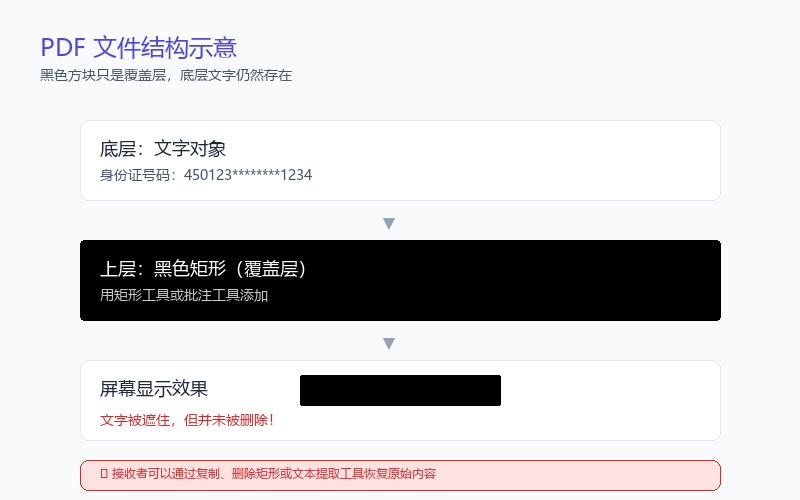
For example, a row of ID numbers might be a text object, and the black rectangle is a later-added rectangle object:
Top layer: Black rectangle
Bottom layer: ID number 450123********1234
The PDF reader draws the text first, then draws the black rectangle on top. The ID number is not visible on screen, but the text object has not been deleted.
This is similar to covering text on a printed document with a piece of black paper: just because you can't see it doesn't mean the content below no longer exists.
U.S. court guidelines for redacting electronic documents also specifically warn that using annotation tools or graphic tools to cover text may leave original content that can be copied and recovered.
2. Why Black Rectangles Can Be Bypassed?
1. The covered text can still be selected
If the black rectangle is just an overlay, users may still be able to drag the mouse to select the text below. Even if the selected content is not visible on screen, copying and pasting it into Notepad, Word, or other text editors may reveal the original text.
The simplest check is: Open the redacted PDF → Press Ctrl+A or manually select text near the black area → Copy the content → Paste into a plain text editor → Check if sensitive information still exists.
The UK Information Commissioner's Office guidance also points out that black highlighting or overlay formatting may not delete the underlying text, and when copying text the formatting is not copied along, so hidden content may reappear.
2. Black rectangles may be deletable
Black areas added using rectangle tools, drawing tools, comment tools, highlight tools, stamps, text boxes, image overlays, or shape components in PDF editors are often just ordinary graphics or annotations.
Recipients using PDF editing software may select the rectangle and then: delete it, move it, adjust transparency, modify color, change layer order, or hide annotations. Once the rectangle is moved away, the text below will be visible again.
3. Text extraction tools ignore visual overlays
PDF text extraction tools typically read text objects in the file, not whether black graphics cover those text on the page. Even if the screen shows 'Name: ██████', the text extraction result may still be 'Name: Zhang San'.
Search engines, document indexing tools, screen readers, and some AI document analysis tools may also read the underlying text.
4. Search functions may find redacted text
You can press Ctrl+F in a PDF reader to search for names, numbers, or keywords that have been redacted. If search results still locate the black area, the relevant text is likely still saved in the PDF.
However, not finding a search result doesn't mean it's safe. Content may exist in images, OCR hidden text layers, form fields, annotations, attachments, or metadata.
3. Invisible, Delete, and Redact Are Three Different Operations
These three concepts are often confused.
[Invisible] Only changes the display effect, such as: covering with a black rectangle, changing font color to white, adjusting transparency, moving content outside the page, or hiding layers. The content may still exist.
[Ordinary Delete] Pressing the delete key in an editor sometimes only deletes the currently displayed object. Historical versions, annotations, forms, attachments, or metadata may still retain relevant information. Different PDF editors have different deletion methods, and you cannot judge solely by eye.
[Permanent Redaction] True redaction should:
1. Locate the text, images, or page areas to be deleted;
2. Remove corresponding objects from the PDF content structure;
3. Process images or vector objects intersecting with the area;
4. Delete related hidden text layers;
5. Draw redaction marks at the deleted location;
6. Clean metadata, annotations, attachments, forms, and other hidden content;
7. Save as a new PDF;
8. Re-check the generated file.
Adobe's description of its formal redaction process is also 'mark content to be deleted, then apply redaction'. Only after applying and saving is the marked content permanently removed; you should also choose to clean hidden information.

4. Which Common Practices Are Not Safe?
Using black rectangle overlay: This is the most common mistake. The rectangle may just be a graphic object that can be moved or deleted.
Using black highlight: Highlights are essentially annotations. Even if the color is set to black, the text below may still be copyable.
Changing text color to white: White text on a white background is invisible, but it's still normal text. Selecting and copying, or changing the background color, may reveal it again.
Using blur and mosaic: For screenshots and photos, sufficiently strong blurring can reduce recognition risk; but for PDFs with independent text layers, blur effects may only affect the visual layer, while the underlying text still exists. Light blurring may also leak information through image enhancement, context speculation, or character outline recognition.
Clicking 'Save' after deletion: Saving doesn't necessarily mean old content has been cleared from the file. Some PDFs may contain: old objects from incremental saves, annotation history, form field values, hidden layers, unused objects, embedded attachments, document metadata.
Directly 'Print to PDF': Print to PDF sometimes flattens page content, but it cannot be used as a universal safe redaction method. Different systems, browsers, and PDF print drivers handle it differently. If page rasterization is used, rendering each page as an image and regenerating the PDF can indeed reduce the risk of underlying text residue, but it also brings obvious drawbacks: files may become larger, text cannot be searched normally, copy function is lost, accessibility structure is lost, clarity may decrease, and OCR may create new text layers again.
5. Correct PDF Permanent Redaction Workflow
Step 1: Keep the original file. Do not overwrite the original PDF directly. It is recommended to create two versions: Contract_Original.pdf and Contract_ForDistribution_Redacted.pdf. The original file should be saved in a protected location.
Step 2: Confirm the information to be processed. Common sensitive content includes: names, mobile phone numbers, home addresses, emails, ID card numbers, passport numbers, bank account numbers, credit card numbers, signatures, faces, customer numbers, medical information, business quotes, internal approval opinions, contract confidentiality clauses, company seals, QR codes and barcodes. Besides the main text, also check headers, footers, table of contents, attachments, annotations, and forms.
Step 3: Mark areas to be redacted. Use a dedicated PDF redaction tool to select text, images, or page areas. 'Marking' is just the preparation stage. At this point, you can usually still undo or modify, and the original content has not been permanently deleted.
Step 4: Apply permanent redaction. After confirming the areas are correct, execute 'Apply Redaction' or 'Permanently Delete'. A proper redaction tool should delete the selected content, not just add black graphics on top. If you need to preserve context, you can display 'Deleted', 'Personal Information', 'Trade Secret' etc. in the redacted area. Black is not the only color that can be used. The key is not what color the redaction mark is, but whether the underlying content has been removed.
Step 5: Clean hidden information. After redacting the main text, you should also check and clean: title, author, subject, keywords, creation software, creation and modification times, XMP metadata, annotations and reviewer names, form field values, file attachments, hidden layers, JavaScript actions, external links, embedded files, OCR hidden text layers, content outside the visible page area.
Step 6: Save as a new file. Do not overwrite the original file. The new filename should clearly indicate this is the version that can be sent externally, for example: ProjectQuote_Redacted_ExternalVersion.pdf. If the document has a digital signature, any content modification may invalidate the original signature.
Step 7: Reopen and verify. Close the editor, then reopen the newly generated file. Don't just look at the preview in the editing interface.
6. How to Quickly Determine If a PDF Is Just 'Visual Cover'?
Method 1: Copy and paste. Select text near the redacted area and copy to a plain text editor. If the original text appears, redaction has failed.
Method 2: Full-text search. Search for deleted names, phone numbers, or keywords. If you can still find them, the corresponding text still exists in the file.
Method 3: Try to select the black rectangle. Click the black area in a tool that supports PDF editing. If the black area can be moved, deleted, or modified independently, it is likely just an ordinary graphic or annotation.
Method 4: Extract all text. Use a PDF text extraction tool to export TXT or JSON, then search for sensitive content. This method is easier to discover OCR hidden text layers than visual inspection.
Method 5: Check document hidden information. Check if the PDF contains: annotations, attachments, forms, layers, metadata, JavaScript, external links, hidden text.
Note that these methods can only help discover obvious problems. Passing simple checks does not automatically prove the document is absolutely safe.
7. Performing PDF Permanent Redaction in Qudo
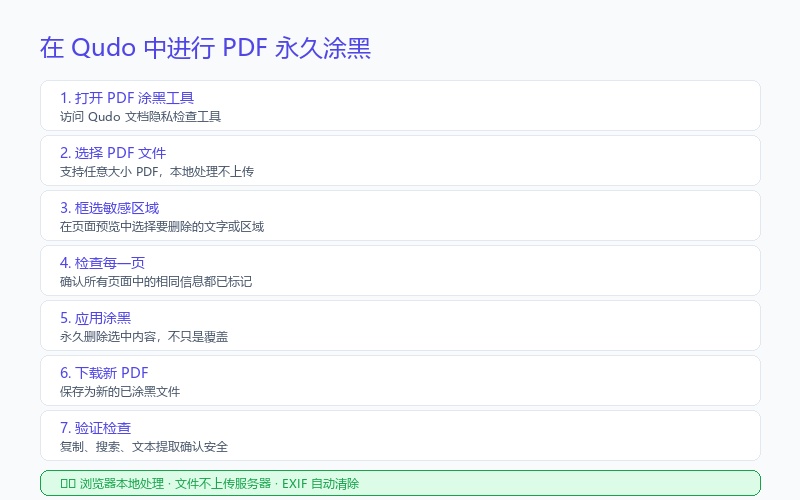
You can use Qudo's PDF sensitive information permanent redaction tool to process PDFs that need to be shared. The basic workflow is as follows:
1. Open the PDF redaction tool;
2. Select the PDF file to be processed;
3. Find sensitive content in the page preview;
4. Frame-select the text or area to be permanently deleted;
5. Check if the same information exists on each page;
6. Apply redaction;
7. Download the processed new PDF;
8. Reopen the downloaded file for copy, search, and text extraction checks.
Qudo uses browser-local processing. Files are read and processed by the current browser and do not need to be uploaded to Qudo servers.
For legal documents, medical documents, financial materials, or other highly sensitive documents, manual review is still recommended, and you should comply with your organization's document security policies.
8. Several Easily Overlooked Questions
Do I still need to set a password after redaction?
The two solve different problems. Permanent redaction: deletes content that should not be seen by recipients; Password protection: restricts people without passwords from opening the file. A password cannot replace permanent redaction. People who obtain the password can still see all content in the file.
Are scanned PDFs safer?
Not necessarily. Scanned PDFs may contain OCR hidden text layers, and may also retain information in attachments, metadata, or forms. After processing, you still need to perform text extraction and hidden information checks.
Can I take screenshots and then convert to PDF?
For a small number of pages, correctly generated screenshots can eliminate original text objects, but you need to confirm: the blocked areas have truly covered pixels, images have no transparent areas, the original file is not retained as an attachment, the new PDF has not re-added an OCR layer that leaks the original text, and the resolution is sufficient without exposing recognizable residual outlines. This method will lose text search and accessibility capabilities and is not suitable for all documents.
Can it be recovered after true redaction?
If the tool correctly deleted relevant objects, cleaned hidden information, and re-saved the file, recipients should not be able to recover the original content from the published version. But original files, temporary files, cloud history versions, and backups may still contain unprocessed content and therefore need to be properly managed.
Must redaction areas be black?
Not necessarily. White, gray, or color blocks with 'Deleted' text can all serve as visual markers. Safety depends on whether the underlying content has been permanently deleted, not on the color of the block itself.
9. Pre-Distribution Checklist
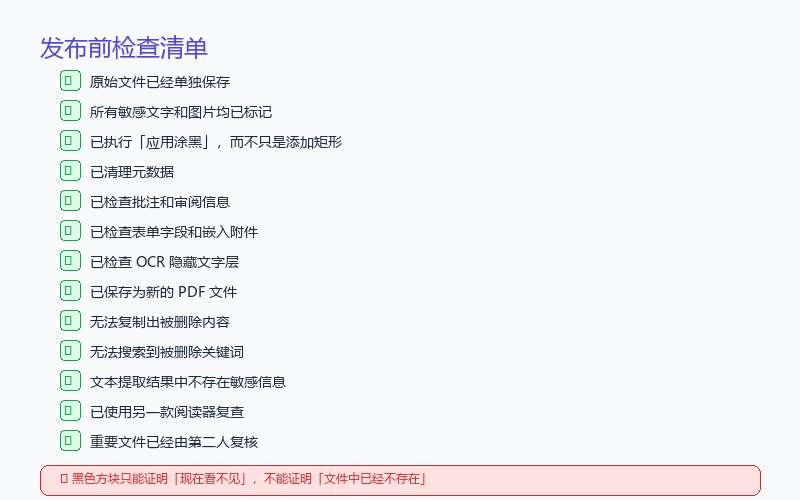
Before sending or publishing a PDF, you can confirm according to the following checklist:
☐ Original file has been saved separately;
☐ All sensitive text and images have been marked;
☐ 'Apply Redaction' has been executed, not just adding rectangles;
☐ Metadata has been cleaned;
☐ Annotations and reviewer information have been checked;
☐ Form fields have been checked;
☐ Embedded attachments have been checked;
☐ OCR hidden text layers have been checked;
☐ Saved as a new PDF file;
☐ Closed and reopened the new file;
☐ Cannot copy out deleted content;
☐ Cannot search for deleted keywords;
☐ Text extraction results do not contain sensitive information;
☐ Reviewed with another reader;
☐ Important files have been reviewed by a second person.
Summary
Black rectangles on PDF can only prove 'can't see it now', not 'doesn't exist in the file'.
Safe PDF redaction should accomplish at least three things:
1. Permanently delete sensitive content from the PDF structure;
2. Clean metadata, annotations, attachments, and other hidden information;
3. Re-perform search, copy, and text extraction checks on the generated new file.
If you just draw a rectangle, use black highlight, or change text to white, the original content may still be copied, searched, or recovered. When dealing with identity documents, contracts, finance, medical records, and customer data, do not rely on visual judgment. Be sure to use true redaction functionality and complete review.