How to Permanently Redact a PDF—and Why Black Boxes Aren't Enough
Learn why drawing a black rectangle over PDF text doesn't truly remove sensitive data, what metadata and layers to check, and how to redact PDFs safely in your browser.Target SEO Keywords: redact PDF permanently, remove sensitive info from PDF, remove PDF metadata, private online PDF tools
Before sending out a contract, bank statement, ID scan, or internal report, many people instinctively draw a black rectangle over sensitive details in an editor. It looks covered on screen, yet the underlying data often remains intact inside the file structure.
Why Drawing a Black Box Isn't True Redaction When many PDF editors or annotation tools place a rectangle over a page, they simply add a visual shape on top of the rendering layer. The original text stream, character encodings, and font mappings can still sit untouched underneath.
That leaves openings for anyone who inspects the file more closely:
Copying or extracting text: Certain viewers or scripts can still read underlying text streams even when a region looks covered.
White text, tiny fonts, or hidden layers: Making text white, shrinking it to near zero, or tucking it into a hidden layer hides it from casual view without removing it from the document structure.
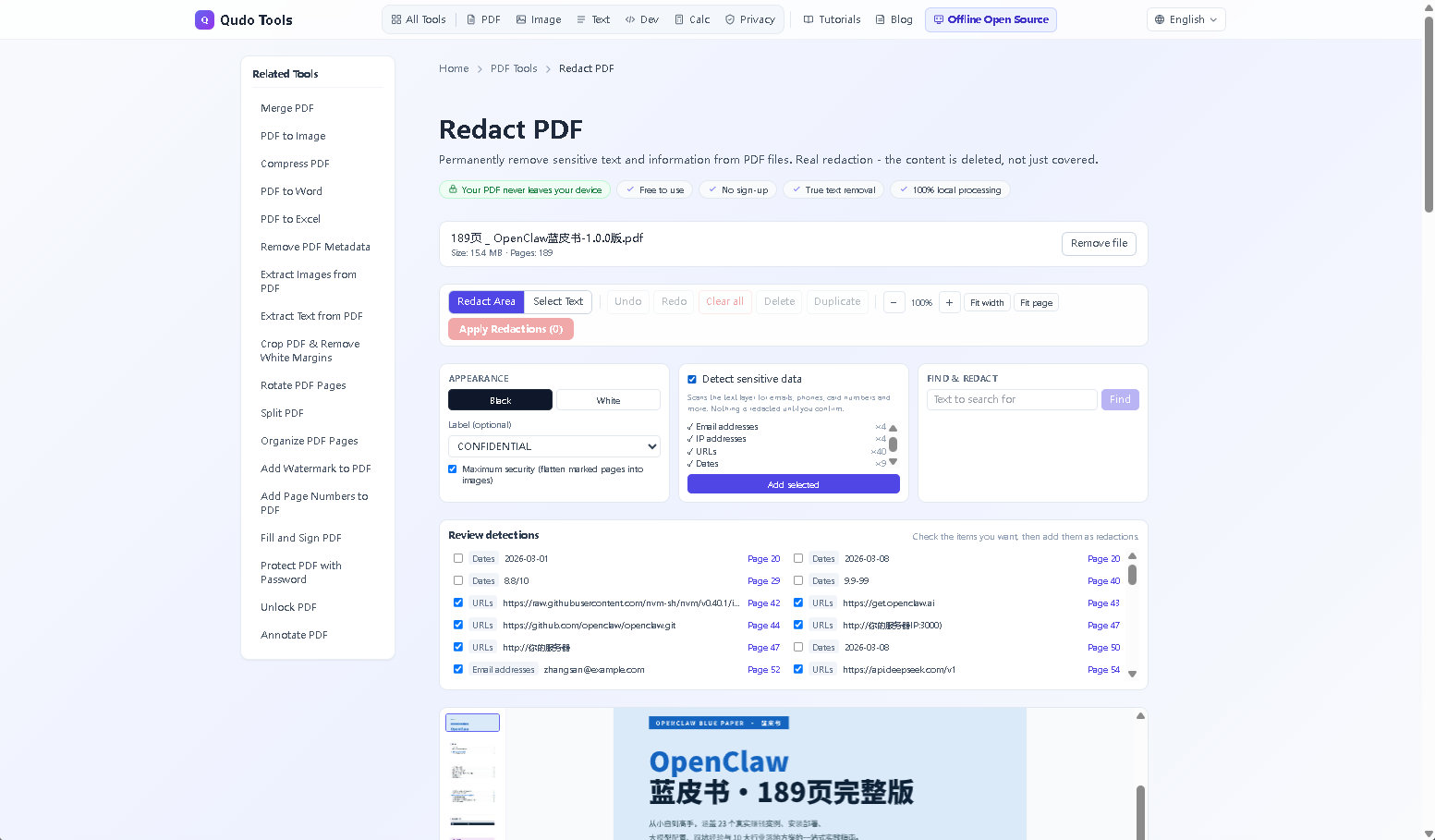
True PDF redaction removes the target text content, vector paths, or image data from the document itself rather than placing a visual cover over it.
3 Privacy Blind Spots Easy to Miss Before Exporting Even after visible numbers or names are cleared, a PDF can still leak context in other places:
Document properties and metadata: Author names, creation timestamps, edit history, and producer software details frequently live in PDF metadata. Leaving them intact shares workflow clues along with the file.
Annotations, forms, and hidden elements: Review notes, uncleaned form fields, or specific layers can hold draft remarks or earlier revisions.
Scanned pages and legibility after compression: If you are working with image-based scans or compressing pages, reopen the output to check that covered edges are clean and required text remains readable.
A 30-Second Check Before Sending Any File Before sharing a PDF externally or submitting it elsewhere, run through three quick checks:
Drag across or try copying the redacted area to confirm the text cannot be selected or pasted.
Search the document for key numbers, names, or reference IDs to verify they no longer appear.
 Check document properties and metadata to confirm extra fields have been stripped.
If you want to handle redaction, metadata cleanup, and password protection directly in your browser, explore Qudo Tools and its PDF Tools, including PDF Sensitive Info Redactor and Remove PDF Metadata.