Offline open-source tools
Qudo MarkDown toolbox
Qudo Markdown — an offline Markdown editor with live preview and multi-format export.
Qudo Markdown is an offline Markdown desktop editor for Windows, built with PyQt6. It combines live preview, a hierarchical outline, syntax highlighting, automatic draft saving, and document statistics in one workspace. Export your content to Markdown, HTML, PDF, Word, or PNG/JPEG images. With English and Simplified Chinese interfaces, multiple themes, and custom colors, it makes writing and organizing documents more comfortable. No registration or internet connection is required for everyday us
- Platform
- win10,win11
- Version
- v0.0.1
- License
- https://github.com/xuejiazhi-qudo/MarkdownWorkbench/blob/main/LICENSE#/
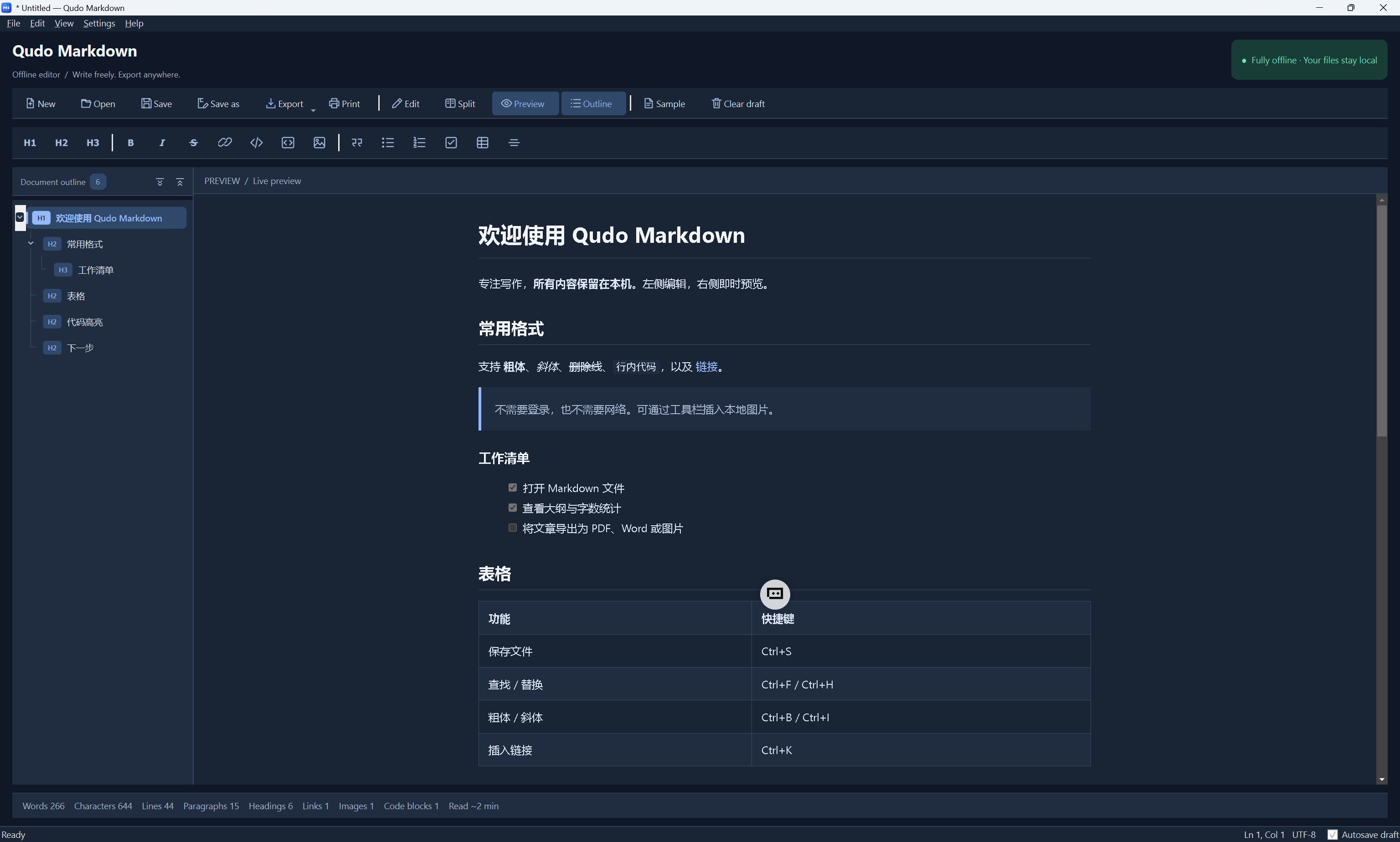
Qudo Markdown: An Offline Markdown Editor Built for Focused Writing
Qudo Markdown is a Windows desktop editor built with PyQt6, bringing Markdown writing, live preview, document navigation, and multi-format export into a single workspace. Whether you are taking everyday notes, organizing technical documentation, or writing project descriptions, you can work locally without registering an account or connecting to the internet for everyday use.
See Your Formatting as You Write
Qudo Markdown offers three viewing modes: Edit, Split, and Preview. Live preview lets you see how headings, lists, tables, and code blocks appear as you write. When you need to concentrate on editing or review the finished document, you can switch to a dedicated editing or preview view.
The editor supports syntax highlighting, line numbers, word wrapping, and multiline indentation. Toolbar buttons help you quickly insert bold, italic, strikethrough, links, images, blockquotes, task lists, and tables, reducing repetitive typing.
Keep Long Documents Organized with a Heading Tree
As documents grow, finding the right section can become time-consuming. Qudo Markdown automatically generates a hierarchical outline from your headings, using H1–H6 badges, hierarchy guides, and folding arrows to show the document’s structure.
Click a heading to jump to its content. The outline highlights your current section as you edit, supports expanding or collapsing all sections, and preserves collapsed sections when the document refreshes, helping you stay focused on the part you are working on.
Support for Common Markdown and GFM Formatting
Alongside basic Markdown syntax, Qudo Markdown supports tables, task lists, strikethrough, automatic links, and code highlighting to meet common formatting needs for notes and technical documentation.
Track progress with task lists, organize information in tables, and present programming examples in code blocks. You can insert local images directly into your document without relying on online image services for previewing.
Automatic Draft Saving Helps You Pick Up Where You Left Off
When you pause typing, the application automatically saves a recovery draft locally so you can continue where you left off the next time you launch it. Document statistics show word and character counts, lines, paragraphs, and estimated reading time, helping you keep track of your document’s length.
Draft autosave and file saving are separate operations. Autosave helps recover your editing session; to write changes to the original file, click Save or press Ctrl+S. An asterisk in the window title indicates that the file has unsaved changes.
One Document, Multiple Export Options
When your writing is ready, choose the format that suits your needs:
- Markdown: Preserve the original text for further editing or version control.
- HTML: Create a standalone page with styles and embedded local images.
- PDF: Export with A4 pagination and selectable, searchable text.
- Word: Continue editing, collaborate on reviews, or submit your document.
- PNG / JPEG: Stack document pages vertically into a long image for display and sharing.
The application also provides access to the system print dialog. Layout may vary between formats, so you can choose the output that best fits its intended use.
English and Chinese Interfaces with Customizable Themes
Qudo Markdown includes English and Simplified Chinese interfaces, which you can switch between instantly in Settings. Changing the interface language preserves your existing content, cursor position, and undo history.
Theme settings include Ocean Blue, Emerald Green, Violet, Rose, Warm Amber, and Dark presets, along with custom accent colors. Colors are applied across the toolbar, editor, outline, and live preview, while exported documents retain their white paper appearance—giving you a personalized workspace and consistent document output.
Work Offline and Keep Your Content Local
Editing, previewing, and exporting in Qudo Markdown can all be completed locally. The preview blocks network requests, displays placeholders for remote images, and does not automatically open external links in a browser.
For users who regularly work with notes, project descriptions, or internal documents, this offline workflow reduces dependence on online services and makes it easier to control where documents are stored and how they are used.
From a quick note to a fully structured technical document, Qudo Markdown provides a clear, customizable workspace for writing locally.