How to Check If a Photo Contains GPS Location?
EXIF GPS · Location Privacy · Multi-Platform Check · Metadata Cleanup
Recommended Tool: https://www.qudo.cc/en/exif-tool
Suitable for anyone who needs to check and remove GPS location data from photos before sharing them publicly or with others.
This article explains how photos may contain hidden GPS coordinates and introduces complete checking and cleanup methods across Windows, Mac, iPhone, Android and browser-local processing. Qudo provides a browser-local EXIF inspection tool.
Phones and digital cameras may write shooting time, device model, lens parameters and geographic location into photo files in addition to saving the image itself. This information is usually not displayed directly on the photo, but can be read through file properties or metadata tools. If a photo contains GPS coordinates, the person who receives the original image may be able to determine the approximate location where the photo was taken, even pinpointing a specific residence, company, school or frequently visited place.
1. What Is GPS Information in Photos?
GPS information in photos is typically stored in EXIF metadata. EXIF is a commonly used image information format for cameras and phones that can record: device brand, phone or camera model, shooting date and time, shutter speed, aperture, ISO, focal length, image orientation, editing software, author and copyright, GPS latitude, GPS longitude, altitude, shooting direction, GPS time.
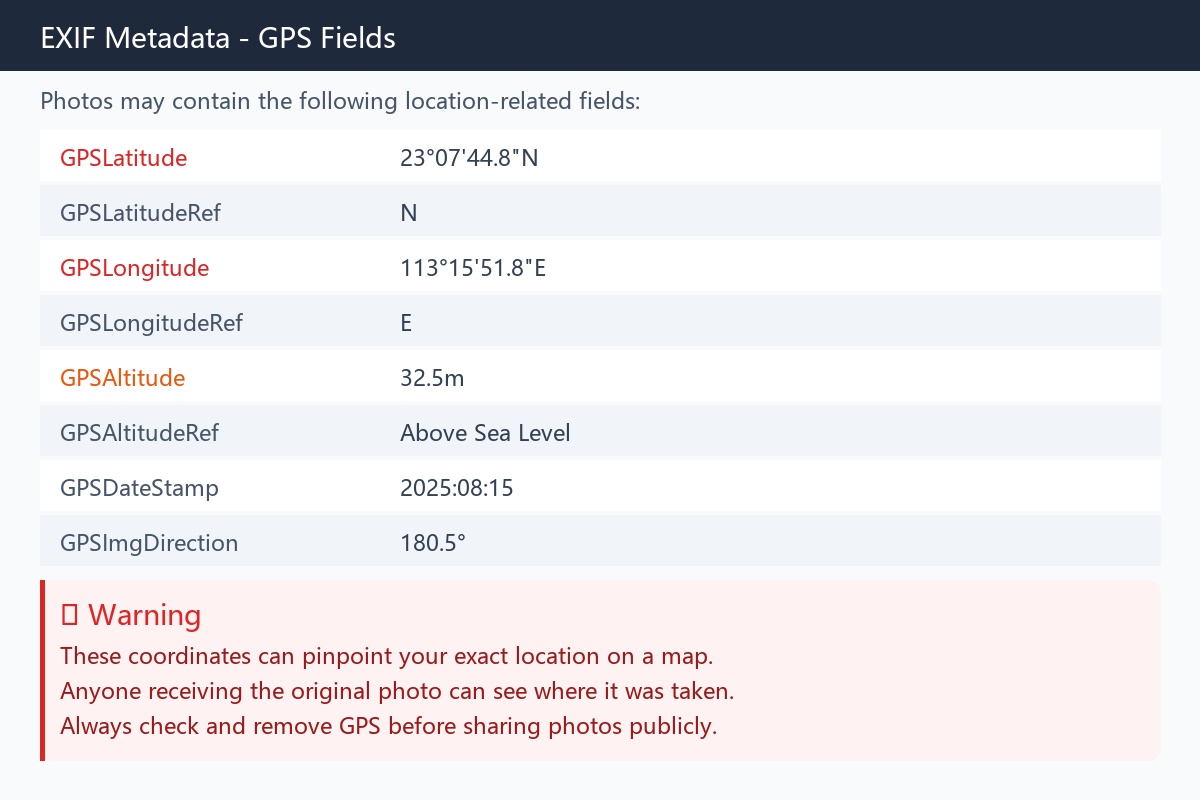
Common location-related fields include:
GPSLatitude
GPSLatitudeRef
GPSLongitude
GPSLongitudeRef
GPSAltitude
GPSAltitudeRef
GPSDateStamp
GPSImgDirection
A set of coordinates may be saved in degrees, minutes and seconds, or converted to decimal degrees by tools, for example:
Latitude: 23.1291
Longitude: 113.2644
Entering these coordinates into mapping software can reveal the corresponding location.
ExifTool's tag documentation also shows that location in images is usually composed of latitude, longitude and their north/south, east/west direction indicators; if the camera recorded altitude, it will also include altitude value and reference direction.
2. When Do Photos Save Location?
Phone cameras can only write geographic location to photos after being granted location permissions. Common situations include: camera has been granted 'While Using the App' location permission; 'Save Location' is enabled in camera settings; 'Location Tag' or 'Geotagging' is turned on; GPS, Wi-Fi or mobile network positioning was available when taking the photo; album software later manually added location; cloud album inferred location based on landmarks or other photos; image editing software preserved original metadata during export.
iPhone, after enabling camera location permissions, may combine GPS, Wi-Fi, mobile network and Bluetooth information to determine the shooting location and write coordinates into photos or videos.
On Android phones, the option names vary by manufacturer. Common options include: Save Location, Location Tag, Geotag photos, Add location information, Store location data.
3. Which Image Formats May Contain GPS?
JPEG/JPG: Most common. JPEG photos taken by phones and digital cameras can usually store complete EXIF information including GPS coordinates.
HEIC/HEIF: Commonly used by iPhones and other devices, can also save shooting device, time, orientation and location information. When converting HEIC to JPG, the conversion tool may: preserve original GPS; delete all metadata; only copy partial metadata; generate new time and software information. You cannot determine whether GPS has been deleted based solely on format conversion.
TIFF: Can store rich EXIF, XMP and other metadata, and may also contain GPS information.
WebP: WebP can carry EXIF and XMP data, so it may also contain location coordinates.
PNG: PNG does not use EXIF as extensively as camera JPEGs, but modern PNG files can contain EXIF, XMP and text data. Therefore, you cannot simply assume PNG is definitely free of location or privacy information.
Screenshots: Most phone screenshots do not record shooting GPS like camera photos, but may contain: screenshot time, device or software information, editing software name, XMP or text fields. More importantly, the screenshot content itself may display addresses, map locations, order information or notification content.
4. File Location and Album Location Are Not the Same Thing
This is the most easily confused aspect when checking photo location. A photo showing 'Taken in Shanghai' may have three possible sources:
1. GPS coordinates written by the camera into the file. Coordinates are saved inside JPEG, HEIC and other image files. When the original image is downloaded or sent to others, this information may travel with the file.
2. Location manually added by the user in the album. The location may only be saved in the album service or account database, not necessarily written back to the original image file.
3. Location inferred by album software. Services like Google Photos may infer shooting location based on landmarks in the photo, adjacent photos and other information.
Google states that photo locations may come from camera writes, or may be added by users or estimated by the system. Google Photos allows modifying estimated locations, but locations written by the camera into files may not be directly deletable in Google Photos.
Therefore: an album displaying a map does not necessarily mean the original file contains GPS; an album not displaying a map also cannot completely prove the original file has no location metadata. To determine whether the file you are about to send is safe, you should directly check that file.
5. Using Qudo to Check Photo GPS Location
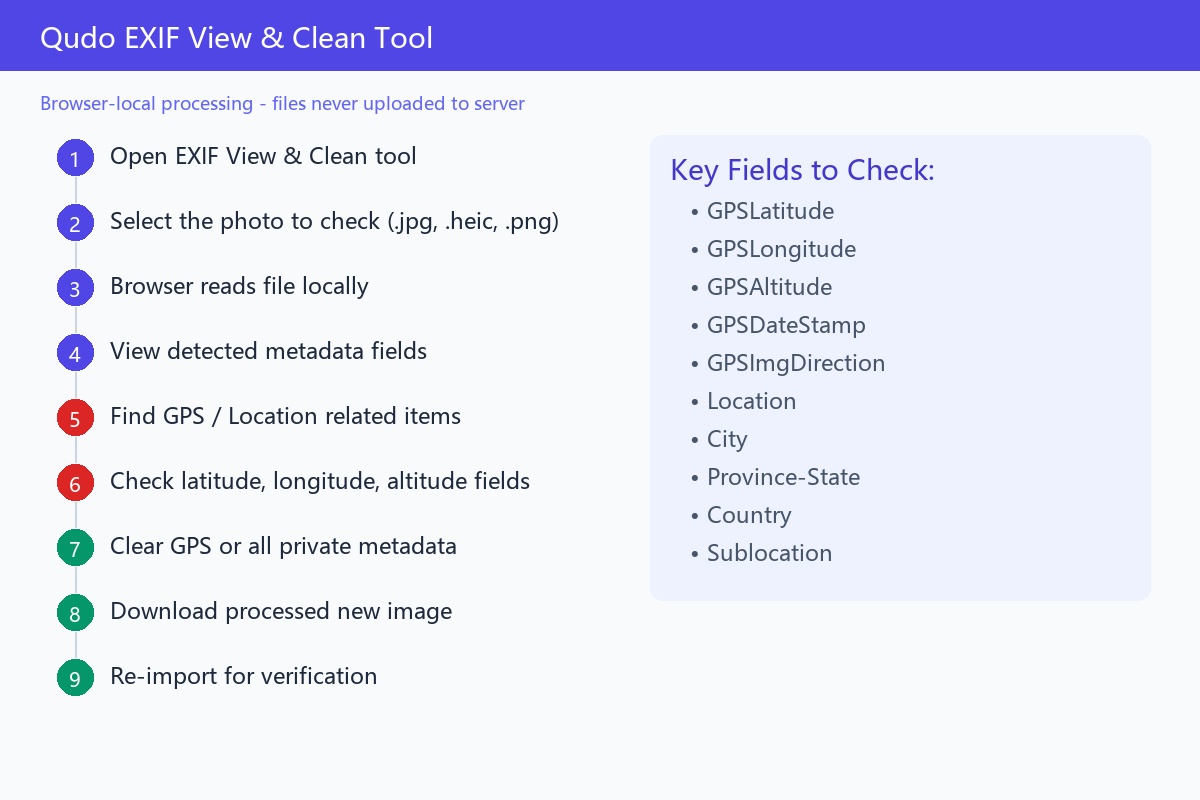
You can use Qudo's EXIF View & Clean tool to check photos. Basic steps:
1. Open the EXIF View & Clean tool;
2. Select the photo to check;
3. Wait for the browser to read the file;
4. View detected metadata;
5. Find GPS or location-related items;
6. Check for latitude, longitude, altitude and other fields;
7. Clear GPS or all private metadata as needed;
8. Download the processed new image;
9. Re-import the new image into the tool for re-inspection.
Key fields to look for:
GPSLatitude
GPSLongitude
GPSAltitude
GPSDateStamp
GPSImgDirection
Location
City
Province-State
Country
Sublocation
Qudo reads images locally in the browser; files do not need to be uploaded to Qudo servers. For private photos, you should prioritize tools that can process locally.
Why re-check after cleaning? The tool showing 'Processing successful' only proves the cleanup process has been executed; it does not replace final verification. Re-importing the downloaded file can confirm: GPS fields have disappeared; no XMP location fields were preserved; the image still opens normally; image orientation has not changed; image quality meets requirements; the correct file was processed.
6. How to Check Photo GPS on Windows
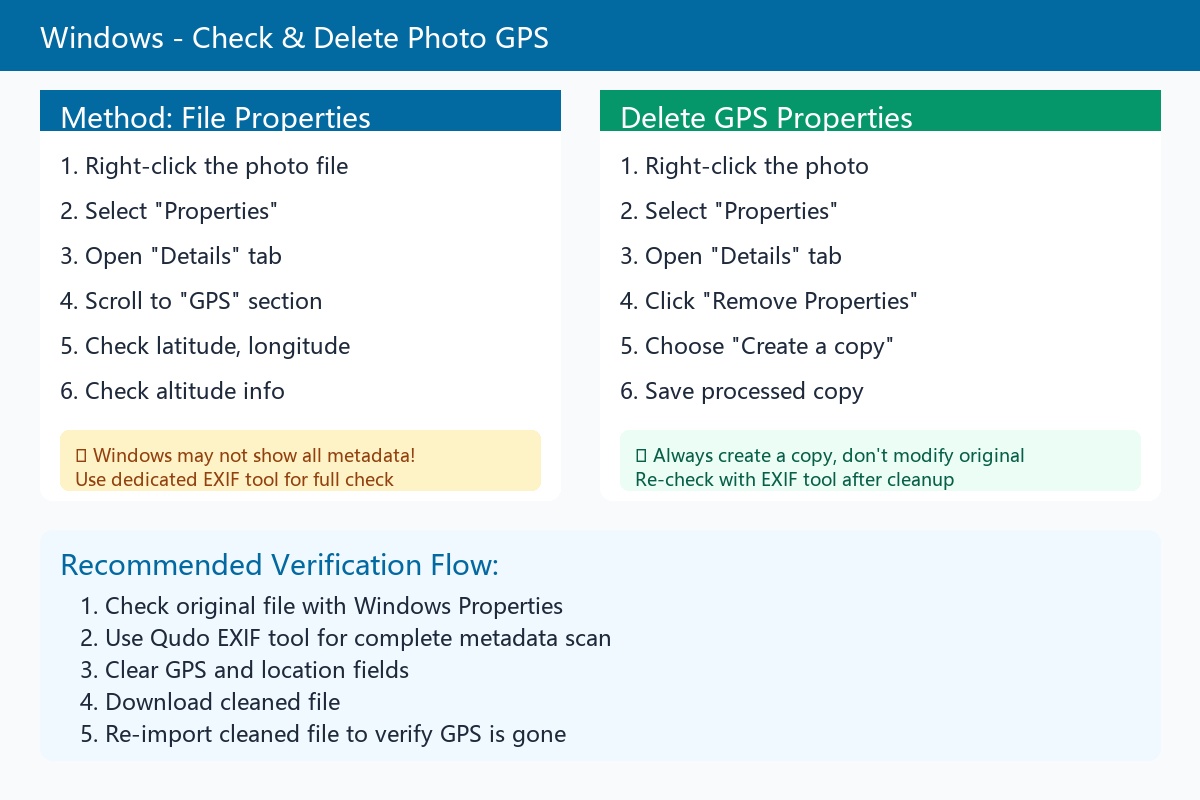
Method: Using File Properties. In Windows 11:
1. Find the photo to check;
2. Right-click the file;
3. Select 'Properties';
4. Open the 'Details' tab;
5. Scroll down to find the 'GPS' section;
6. Check latitude, longitude and altitude information.
You may see fields like: Latitude, Longitude, Altitude. If Windows displays this content, it means location metadata exists in the photo file.
Is it safe if Windows does not display GPS? Not necessarily. Windows file properties can only display metadata that the system can recognize. The following situations may not be fully displayed: the image uses a format the system does not fully support; location information is saved in XMP rather than common EXIF fields; the image contains manufacturer private metadata; HEIC extension or decoding components are incomplete; metadata structure is abnormal; coordinates are in embedded files. For important photos, it is recommended to check again with a dedicated EXIF tool.
7. How to Delete GPS on Windows
Windows can attempt to delete image properties:
1. Right-click the photo;
2. Select 'Properties';
3. Open 'Details';
4. Click 'Remove Properties and Personal Information';
5. Choose 'Create a copy with all possible properties removed' or manually select items to delete;
6. Save the processed copy.
It is recommended to use 'Create a copy' rather than directly modifying the only original image.
After processing: 1. Open the new file; 2. Check properties again; 3. Re-inspect with an independent metadata tool.
Windows may not be able to delete all metadata in all formats. If GPS still exists, you should use a dedicated EXIF cleanup tool.
8. How to Check Photo Location on Mac
Using Preview: 1. Open the photo with Preview; 2. Select 'Tools'; 3. Click 'Show Location Information'; 4. View the GPS area and map. If 'Show Location Information' is grayed out, it usually means Preview did not find readable location data in the image.
Apple states that if the image contains GPS information, Preview can display the shooting location on a map.
Using Mac Photos App: 1. Open 'Photos'; 2. Select the photo to check; 3. Click the information button; 4. Check if a map or location is displayed; 5. Note the distinction between original file location and later adjusted location in the album.
9. How to Check Photo GPS on iPhone
Viewing a single photo's location: 1. Open the 'Photos' app; 2. Open the photo to check; 3. Swipe up or tap the information button; 4. View photo information; 5. If a map or location is displayed, tap for more details.
This may also show: shooting device, shooting time, lens parameters, file size, image format, shooting location.
Apple officially states that swiping up or tapping the information button in iPhone Photos can view metadata including device, time, camera parameters and shooting location.
To see which photos have location: In the 'Photos' app, go to: Albums → Map (or 'Places'/'Map' location album in different system versions). Photos appearing on the map usually have location association, but this location may come from file metadata, user adjustment or album system data. You still need to check the actual file you plan to share.
10. How to Remove Photo Location on iPhone
Remove location from Photos: Based on current iOS versions, typically: 1. Open the photo; 2. Tap the more button; 3. Select 'Adjust Information'; 4. Select 'Adjust Location'; 5. Tap 'No Location'. Menu names may vary slightly across iOS versions.
Only exclude location for this share: If you don't want to modify the original photo in the album, you can turn off location when sharing: 1. Select one or more photos; 2. Tap 'Share'; 3. Tap 'Options' at the top of the share panel; 4. Turn off 'Location'; 5. Confirm it shows 'Location Not Included'; 6. Then choose Mail, AirDrop or other sharing method.
Apple explicitly states that sharing photos may simultaneously share metadata including date, time, device and location; turning off 'Location' in sharing options can prevent this share from including location data.
For particularly sensitive photos, after sharing, it is best to have the receiving end save the file and re-check, rather than relying solely on the sharing interface prompts.
11. How to Check Photo Location on Android
Different Android phone brands have different album interfaces. Common steps: 1. Open the system album or Google Photos; 2. Open the photo; 3. Swipe up or tap 'More'/'Details'; 4. Check if a map, address or coordinates are displayed; 5. View shooting device and time information.
In Google Photos, you can open: Collection → Places to view photos organized by location.
Note the location source in Google Photos: Google Photos displayed location may come from: GPS written by camera; manually added by user; location estimated by Google. Google states you can delete estimated or manually added locations; if the location was automatically written into the file by the camera, Google Photos may not be able to directly modify or delete it.
In this case, you should download the original image, process it with a local metadata cleanup tool, and then check the processed file.
12. How to Prevent Phone from Recording Location
iPhone and iPad: If you don't want the camera to continue saving location:
Settings → Privacy & Security → Location Services → Camera → Never.
After turning this off, newly taken photos usually will not have GPS location written by the camera. This will not automatically delete location already existing in old photos.
Android phones: Enter camera settings and turn off options similar to: Save Location, Location Tag, Geotagging, Add location information, GPS Tag. Names vary by brand.
You can also go to: Settings → Privacy or Permission Manager → Location → Camera → Don't allow.
Google notes that setting names differ across brands. For example, Samsung is usually called 'Location tag', while Pixel devices may be called 'Save location'.
After turning off camera location permissions, features like map albums, location search and travel memories may be affected. Whether to turn off should be decided based on personal usage habits.
13. Will Social Platforms Automatically Delete GPS?
Some social platforms and instant messaging tools compress images, re-encode them, and delete some EXIF information. But this should not be regarded as a reliable privacy protection method.
Reasons include: 'Send photo' and 'Send original file' are processed differently; processing rules may vary across platforms; web, mobile and desktop versions may behave differently; HEIC, JPEG, PNG may use different processing flows; cloud album links may display platform-stored location; the other party may download the original image; the platform itself may read location for internal functions; the image content itself may still expose landmarks, door numbers and routes.
A more reliable sequence is: Check locally first → Clear GPS → Re-check → Then upload or send. Do not entrust privacy protection entirely to the receiving platform.
14. Should You Delete All EXIF When Clearing GPS?
Not necessarily. If you are only concerned about geographic location, you can delete only GPS-related fields while preserving: image orientation, color profile, shooting time, camera parameters, copyright information.
But if the photo is for public release and no shooting information needs to be preserved, consider clearing: GPS; device brand; device model; lens serial number; shooting time; editing software; author; copyright; XMP; thumbnail; manufacturer private information.
Note that image orientation sometimes depends on the EXIF Orientation field. If you delete all EXIF without first writing the orientation into pixels, the photo may be rotated or flipped.
A qualified cleanup tool should correctly handle image orientation before deleting the orientation field.
15. Will Clearing GPS Affect Image Quality?
If the tool can directly delete metadata without recompressing the image, photo pixels and quality usually will not change.
If the tool uses re-encoding, it may produce: file size changes; JPEG quality reduction; color changes; transparency loss; dynamic photo function loss; volume changes after HEIC to JPG conversion; image orientation changes.
After processing, you should check: clarity; resolution; orientation; color; transparent background; dynamic photo or burst status; file format.
Particularly important original images should always have a backup preserved.
16. Can Others Still Determine Location After GPS Is Deleted?
Possibly. Even if the file no longer contains GPS, the photo content itself may still reveal the location, such as: door numbers; street signs; shop names; school names; company logos; subway station names; buildings outside windows; delivery address labels; vehicle license plates; real estate agent watermarks; identifiable natural landmarks; location or weather in the phone status bar.
Google also reminds that even without sharing photo location, others may still be able to infer the shooting location based on landmarks in the photo.
Therefore, location privacy checking should include two parts: 1. Check file internal metadata; 2. Check the photo content itself.
17. Common Misconceptions
Album doesn't show a map, so there's no GPS? Not necessarily. The album may not have read the corresponding format, or location is saved in another metadata area. You should check the file directly.
Can renaming the photo delete GPS? No. Modifying the filename does not change EXIF or XMP data.
Does modifying the shooting time delete location? Usually not. Time and location are different metadata fields.
Can cropping the photo delete GPS? Not necessarily. Some editors clear metadata when exporting, while others preserve it completely.
Is converting to PNG definitely safe? Not necessarily. PNG may also contain EXIF, XMP or text information, and the content itself may still reveal location.
Can you screenshot the original photo? Screenshots usually do not inherit the original photo's camera GPS, but will reduce quality and may retain screenshot software information. Addresses, maps and landmarks in the screenshot content still exist.
Is deleting location in Google Photos enough? Not necessarily. If the location was estimated by Google or manually added, deleting it may only change the cloud album record; GPS written by the camera into the original file still needs separate checking.
Does file size getting smaller mean GPS is deleted? You cannot judge this way. File size changes may come from compression, format conversion or thumbnail changes, which have no necessary relationship with whether GPS exists.
18. Photo Sharing Pre-Check Checklist
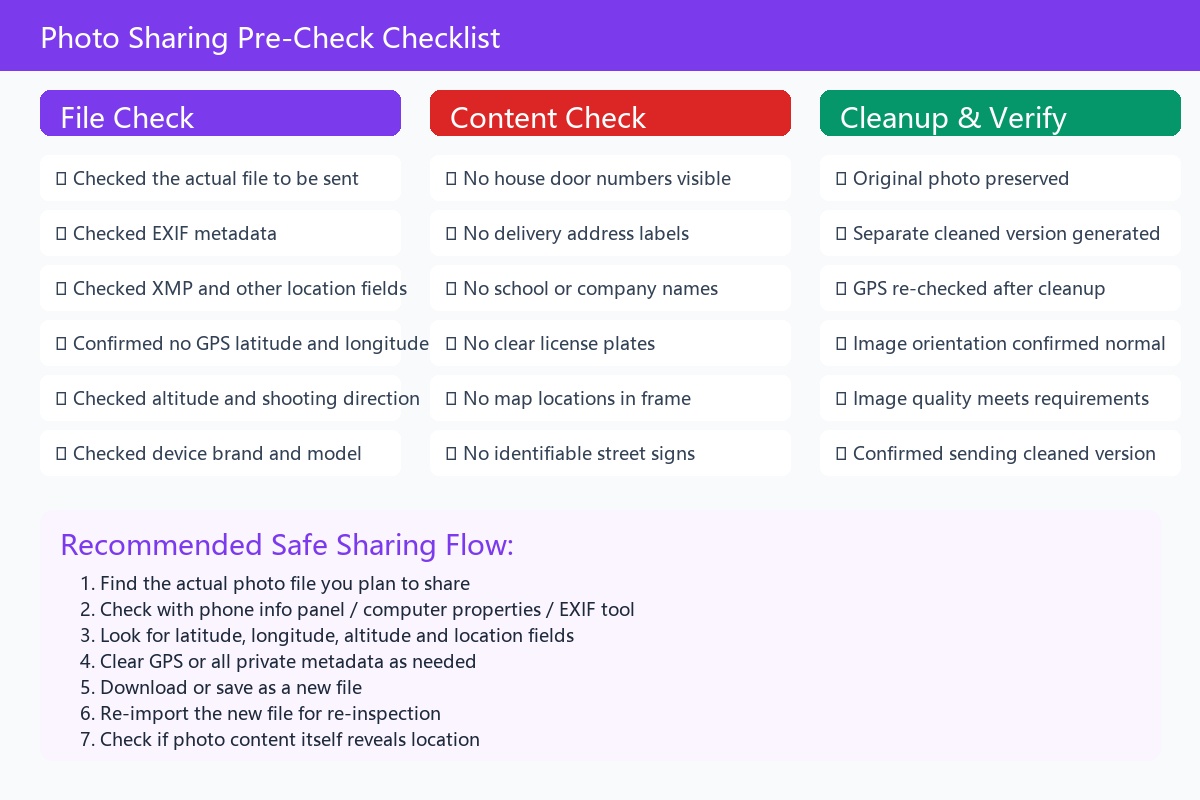
[File Check]
☐ Checked the actual file to be sent
☐ Checked EXIF metadata
☐ Checked XMP and other location fields
☐ Confirmed no GPS latitude and longitude
☐ Checked altitude and shooting direction
☐ Checked device brand and model
☐ Checked shooting time
☐ Checked author and copyright information
[Content Check]
☐ No house door numbers
☐ No delivery address labels
☐ No school or company names
☐ No clear license plates
☐ No map locations
☐ No identifiable street signs
☐ No tickets or orders exposing itinerary
[Cleanup and Verification]
☐ Original photo has been preserved
☐ Separate cleaned version has been generated
☐ GPS has been re-checked after cleanup
☐ Confirmed image orientation is normal
☐ Confirmed image quality meets requirements
☐ Confirmed the version being sent is the cleaned one
☐ Did not rely on social platforms to automatically clear metadata
Summary
Checking whether a photo contains GPS cannot be determined solely by whether the album displays a map, nor by the file extension.
The more reliable process is:
1. Find the actual photo file you plan to share;
2. Check using phone information panel, computer file properties or EXIF tool;
3. Look for latitude, longitude, altitude and location fields;
4. Clear GPS or all private metadata as needed;
5. Download or save as a new file;
6. Re-import the new file into the checking tool for re-inspection;
7. Finally check if the photo content itself reveals the location.
For residential photos, children's photos, ID photos, real estate photos and workplace photos, it is recommended to complete this check before public release. GPS metadata may not always bring risks, but once the original image is publicly disseminated, it becomes difficult to control subsequent downloads and forwards.