Compress PDF User Guide
Online Compression · Multiple Modes · Local Processing · Privacy First
Tool URL: https://www.qudo.cc/en/compress-pdf
Suitable for users who need to reduce PDF file size for email attachments, web uploads, or storage optimization.
All compression is performed locally in your browser. Files are never uploaded to Qudo servers.
This guide is based on the actual interface of the Qudo PDF Compression tool. It covers opening the page, uploading PDF files, selecting compression modes, adjusting advanced settings, and downloading compressed results. Follow this guide to complete the entire compression workflow.
1. Tool Overview
Qudo PDF Compression is an online tool for reducing PDF file size. Users can select from three compression modes: Light Optimization, Recommended Compression, and Strong Compression. The tool supports adjusting DPI, JPEG quality, color mode, and other advanced settings.
Qudo Tools is an online tool platform focused on privacy protection and browser-local processing. All PDF compression is performed within your browser; files are never uploaded to servers.
Common use cases include: reducing PDF size for email attachments, optimizing PDFs for web upload, compressing scanned documents for storage, and batch compressing multiple PDF files.
2. Compression Modes
The tool provides three compression modes to meet different needs:
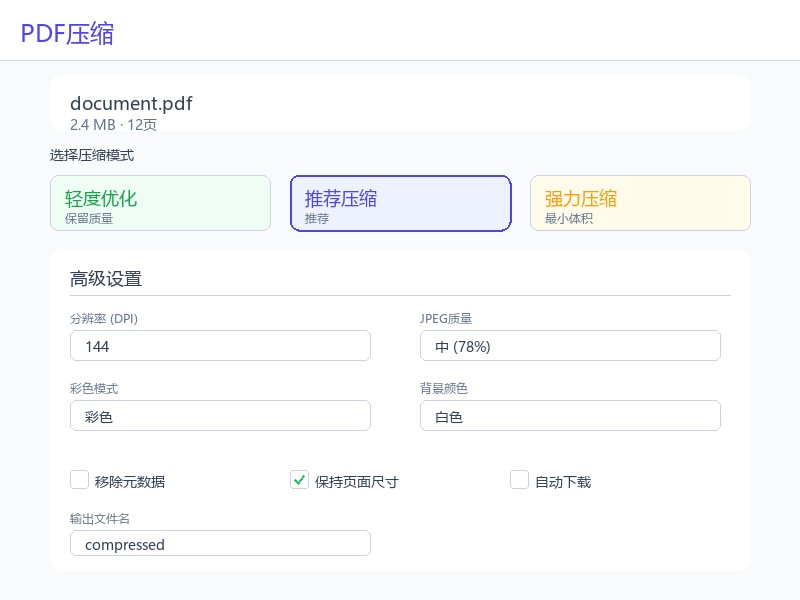
Light Optimization: Preserves text and structure, only re-saves the PDF. Best for documents where quality is critical. No DPI or quality settings are applied.
Recommended Compression (Default): Balances compression ratio and quality. Default settings: DPI 144, JPEG quality 78% (Medium). Suitable for most use cases.
Strong Compression: Achieves minimum file size. Default settings: DPI 96, JPEG quality 60% (Low). Best for archiving or when file size is the priority.
Note: Recommended and Strong modes may affect digital signatures in PDFs. If your document contains digital signatures, use Light Optimization mode.
3. Advanced Settings
For Recommended and Strong compression modes, you can customize the following settings:
Resolution (DPI): Controls image resolution in the PDF. Options: 72 / 96 / 110 / 144 / 150 / Custom (36-300). Lower DPI means smaller file size but lower image quality.
JPEG Quality: Controls image compression quality. Options: Low (60%) / Medium (78%) / High (92%) / Custom slider (10-100%). Lower quality means smaller file size.
Color Mode: Color / Grayscale. Converting to grayscale can significantly reduce file size for documents with color images.
Background Color: Sets the background color for pages. Default is white.
Remove Metadata: When enabled, removes PDF metadata (title, author, creation date, etc.) to further reduce file size.
Keep Page Size: When enabled (default), maintains the original page dimensions. Disable to allow page size optimization.
Auto Download: When enabled, automatically downloads the compressed file after compression completes.
Output Filename: Sets the filename for the compressed PDF. Default is 'compressed'.
4. Usage Steps
Before starting, save the PDF files to be compressed in an easy-to-find location and confirm the files are not corrupted. For important materials, keep a backup of the original files.
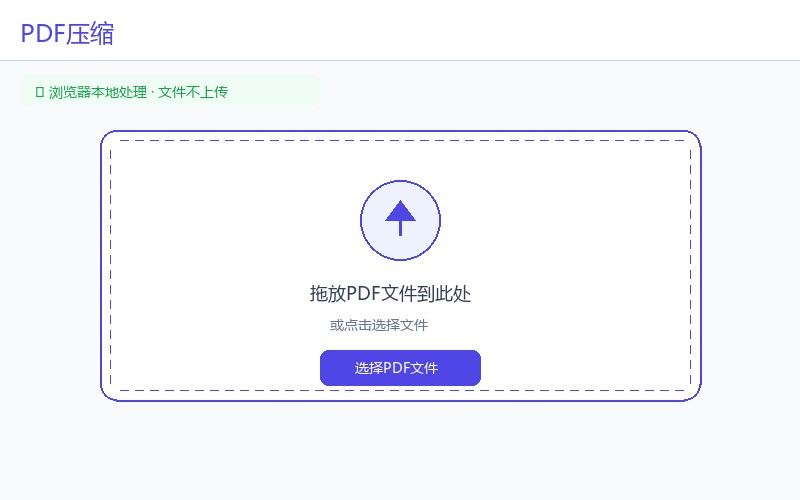
Step 1: Visit the tool page. Open https://www.qudo.cc/en/compress-pdf in a modern browser such as Chrome, Edge, Firefox or Safari. After the page loads, confirm the tool title is PDF Compression, and check whether the page shows privacy instructions such as local processing and no file upload.
Step 2: Upload PDF file. Click the upload area or drag a PDF file into the designated area. The tool supports PDF files of any size. If the file is larger than 50MB, a memory warning will be displayed. For password-protected PDFs, you will be prompted to enter the password.
Step 3: Select compression mode. Choose from three modes: Light Optimization, Recommended Compression, or Strong Compression. For most users, Recommended Compression provides the best balance of quality and file size.
Step 4: Adjust advanced settings (optional). If needed, customize DPI, JPEG quality, color mode, and other settings. For text-heavy documents, higher DPI and quality settings are recommended. For image-heavy documents, lower settings can achieve better compression.
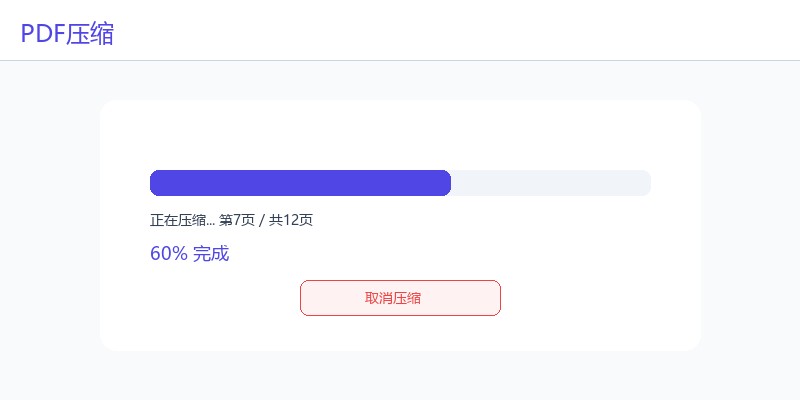
Step 5: Start compression. Click the 'Compress PDF' button. The tool will display a progress bar showing the current page being processed. You can cancel the compression at any time during processing.
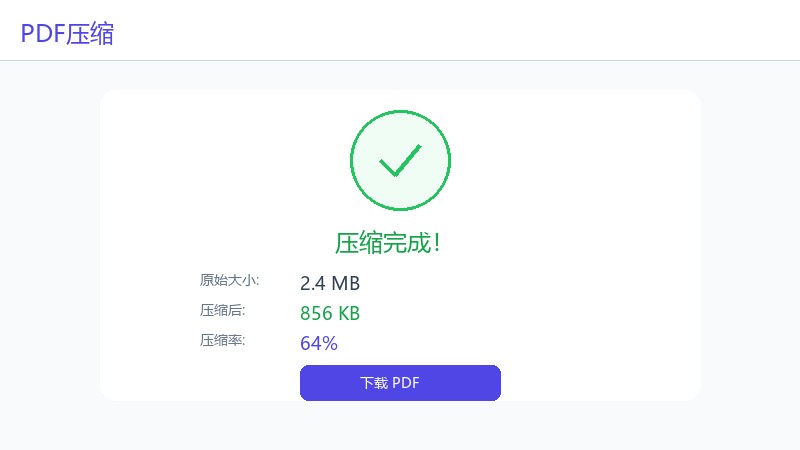
Step 6: Download the result. After compression completes, the tool displays the original file size, compressed file size, and compression ratio. Click the 'Download' button to save the compressed PDF. If the compressed file is larger than the original, a warning will be displayed with a suggestion to try a different mode.
5. Privacy Protection Statement
Qudo PDF Compression processes all files locally in your browser. PDF files are never uploaded to Qudo servers or any third-party servers.
The compression algorithm runs entirely in JavaScript within your browser. No data is transmitted over the network during the compression process.
After compression, the original file and compressed result remain on your device. Clear your browser cache if you want to completely remove traces of the processed files.
For documents containing sensitive information, using this tool is safer than online services that upload files to remote servers.
6. FAQ
Q1: How much can PDF compression reduce file size?
A: Compression ratio depends on the PDF content and selected mode. Light Optimization typically reduces size by 5-15%. Recommended Compression can reduce size by 30-60%. Strong Compression can achieve 50-80% reduction for image-heavy PDFs.
Q2: Will compression affect PDF quality?
A: Light Optimization preserves original quality. Recommended and Strong modes reduce image quality to achieve smaller file size. Text and vector graphics remain sharp at all compression levels.
Q3: Can I compress password-protected PDFs?
A: Yes. If the PDF is password-protected, you will be prompted to enter the password. The tool can compress encrypted PDFs after decryption.
Q4: Will compression remove digital signatures?
A: Recommended and Strong compression modes may invalidate digital signatures because they modify the file content. Use Light Optimization mode to preserve signatures.
Q5: What is the maximum file size supported?
A: There is no hard limit, but files larger than 50MB may trigger a memory warning. For very large files, consider splitting them first using the PDF Split tool.
Q6: Can I batch compress multiple PDFs?
A: The current version processes one PDF at a time. For batch compression, you need to process each file individually.
Q7: Why is my compressed file larger than the original?
A: This can happen with PDFs that contain highly optimized images or vector graphics. Try a different compression mode or adjust the settings.
Q8: Does compression work on scanned documents?
A: Yes. Scanned documents (which are essentially images) can benefit significantly from compression, especially with Recommended or Strong modes.
Q9: Can I set custom DPI and quality values?
A: Yes. Select 'Custom' in the DPI dropdown to enter a value between 36-300. For JPEG quality, use the custom slider to set a value between 10-100%.
Q10: What browsers are supported?
A: The tool works on all modern browsers including Chrome, Edge, Firefox, and Safari. For best performance, use the latest version of your browser.
Q11: Is there a limit on how many times I can compress a file?
A: No. You can compress the same file multiple times with different settings to find the optimal balance.
7. Important Notes
1. Always keep a backup of original PDF files before compression.
2. For documents with digital signatures, use Light Optimization mode to preserve signature validity.
3. If the compressed file is larger than the original, try a different compression mode.
4. For text-heavy documents, use higher DPI (144+) and quality (High) settings.
5. For image-heavy documents, lower DPI (96) and quality (Low) settings achieve better compression.
6. Grayscale conversion can significantly reduce file size for color documents.
7. Removing metadata provides additional file size reduction.
8. Files larger than 50MB may cause memory issues on devices with limited RAM.
9. Do not close the browser tab during compression processing.
10. The tool cannot compress PDFs that are already optimally compressed.
11. Password-protected PDFs require the correct password to be entered before compression.
12. Compressed files cannot be recovered to their original state. Keep the original if you need to make changes later.
8. Quick Checklist
☐ Confirmed the access address is https://www.qudo.cc/en/compress-pdf
☐ Kept a backup of the original PDF file
☐ Selected appropriate compression mode (Light/Recommended/Strong)
☐ Adjusted advanced settings if needed (DPI, quality, color mode)
☐ Started compression and waited for completion
☐ Verified compression ratio and file size reduction
☐ Downloaded the compressed PDF file
☐ Opened the result to verify content and quality
☐ Cleaned up temporary files if needed