Markdown Editor User Guide
Edit online · Real-time preview · Local saving · Multi-format export
Tool URL: https://www.qudo.cc/en/markdown-editor
Suitable for first-time Markdown users
Editing, previewing and exporting are all done in your browser. Your content is not uploaded to Qudo servers.
This guide is based on the actual interface of the online tool and covers the complete workflow from opening the page, entering content, live preview, to importing, auto-saving and exporting.
1. Editor Interface Overview
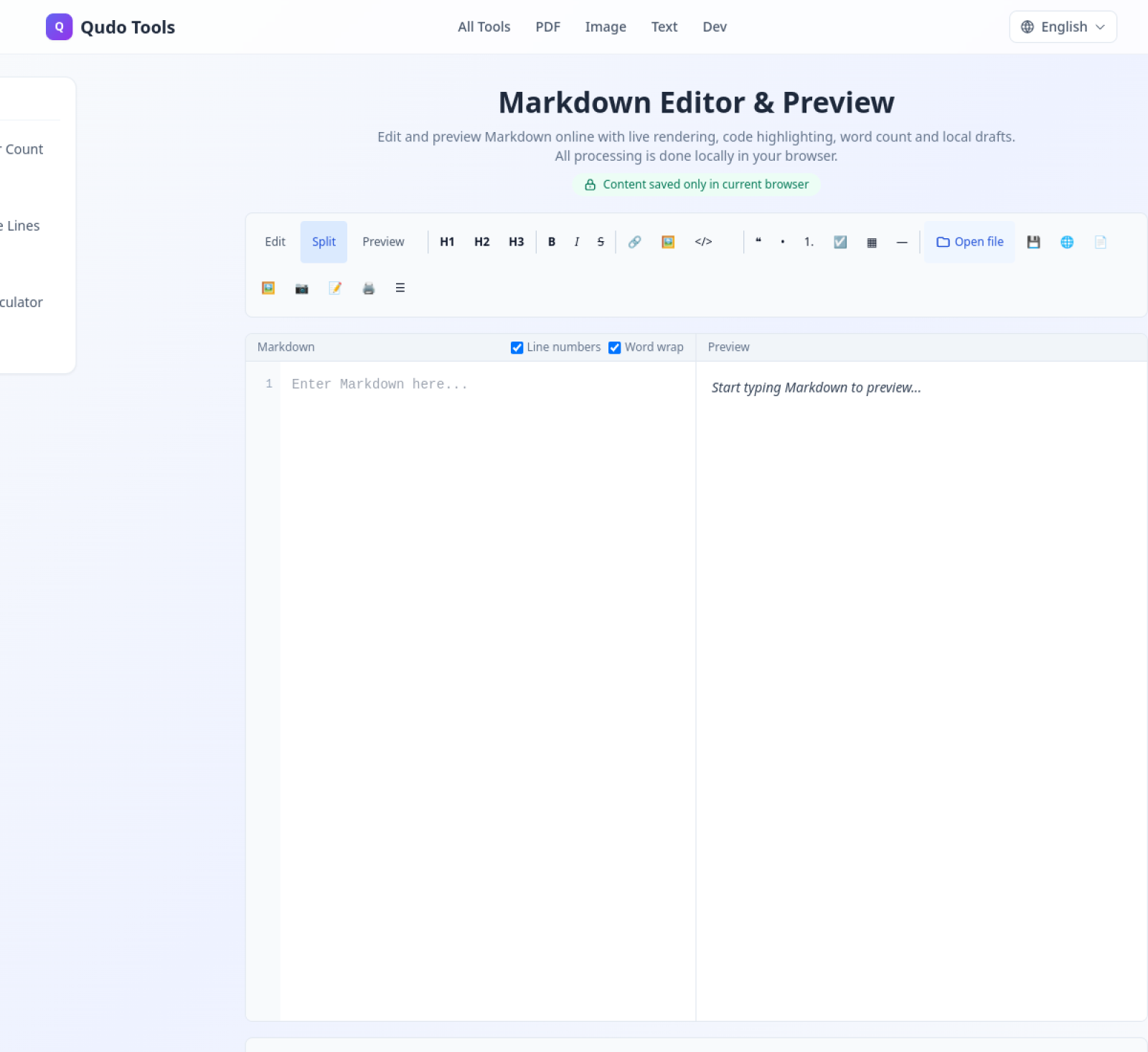
After opening the tool, it is recommended to select Split mode: edit Markdown source on the left and see the rendered result on the right. The toolbar above provides formatting, import and export options.
Area | Usage
Edit / Split / Preview | Three view modes: edit only, split view, preview only
Formatting Toolbar | Insert headings, bold, links, images, code, lists, tables, etc.
Markdown Editor | Input, paste or modify Markdown source
Preview Area | Real-time display of rendered content
Statistics & Save Status | Characters, words, lines, paragraphs, reading time and Saved status
2. Quick Start: Write Your First Markdown Document
Step 1: Open the page and select Split. This lets you type on the left while seeing how headings, lists, tables and code blocks look on the right.
Step 2: Enter content on the left. The right side updates instantly without needing to refresh or run a separate preview.
Step 3: Use the toolbar for quick formatting. Select text and click H1, H2, B, I, link, quote, list or table buttons; or place the cursor and insert the corresponding syntax.
Step 4: Check the Preview. Switch to Preview to thoroughly check heading levels, links, images, tables, code blocks and task lists before exporting.
Step 5: Export and save. Choose Markdown, HTML, PDF, PNG, JPG or Word based on your needs. Important documents should also keep a .md source file.
3. Choosing Between Three View Modes
Mode | Content | Recommended Use
Edit | Markdown source only | Focused writing on long articles or small screens
Split | Edit on left, preview on right | Daily use, most recommended
Preview | Rendered result only | Pre-export check, reading the final result
4. Formatting Toolbar & Shortcuts
Button or Shortcut | Effect | Example H1 / H2 / H3 | Insert level 1, 2, 3 headings | # Heading B / Ctrl+B | Bold | **Important** I / Ctrl+I | Italic | *Note* S | Strikethrough | ~~Old~~ Link / Ctrl+K | Insert web link | [Name](https://...) Image | Insert web image |  </> | Inline or block code | `code` or ``` Quote / List / Task | Insert quote, list, todo | >, -, - [ ] Table / Divider | Insert table or horizontal rule | | Col |, ---
Note: If you use an external URL in image syntax, the browser will request the third-party image server. Be cautious with remote images when handling private content.
5. Opening Files, Auto-Save & Statistics
Opening existing files: Click Open file to select .md, .markdown or .txt files; you can also drag supported text files into the editor. Files are read in the browser and do not overwrite the original files on your computer.
Auto-save: After enabling Auto-save, when you stop typing for a while, the status changes from Saving... to Saved. Drafts are saved in the browser's localStorage.
Changing browsers or devices will not sync drafts automatically. Private browsing windows may delete drafts when closed. Clearing browser site data will delete drafts. Before clicking Clear draft, export any content you want to keep.
Document statistics: The page shows Characters, Words, Lines, Paragraphs and Reading time, useful for estimating length and reading time.
6. Exporting Documents
Format | Use Case | Tips
Markdown (.md) | Continue editing, GitHub, blogs | Recommended as long-term source file
HTML | Offline web pages, archiving | Can be opened directly in browser
PDF | Printing, sending, fixed layout | Check pagination before export
PNG / JPG | Sharing long images, tutorial screenshots | Long articles may produce large images
Word | Sharing with Word users for editing | Complex styles may need review after conversion
Print / Ctrl+P | Browser print or save as PDF | Adjust paper and margins in print preview
7. Document Outline & Supported Syntax
When an article has multiple headings, you can open Document Outline to view the structure. It is recommended to use only one H1 per article, H2 for major sections, and H3 for subsections. Do not skip levels just to enlarge fonts.
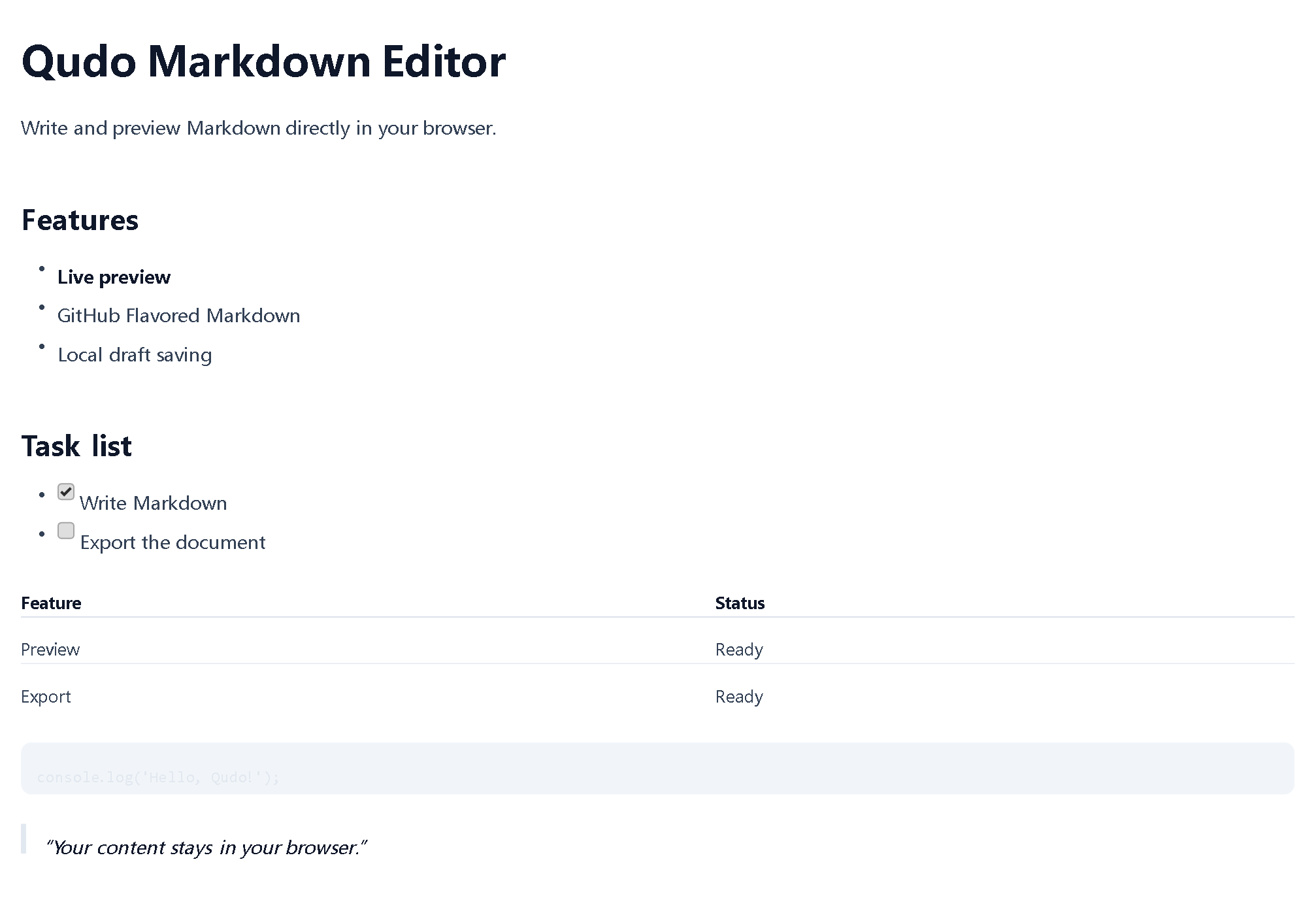
Qudo supports common Markdown and GitHub Flavored Markdown (GFM): headings, bold, italic, strikethrough, links, images, ordered/unordered lists, task lists, quotes, inline code, code blocks, tables, horizontal rules and auto-links. JavaScript, TypeScript, Python, Go, Rust, SQL and other code blocks support syntax highlighting.
8. Privacy, Security & Known Limitations
Privacy notice: Content, imported files, drafts and export processes are done locally in the browser. External images will connect to third-party servers, potentially exposing IP address, access time and browser information. Auto-save is not a permanent backup; important content should be exported promptly.
Known limitations: No accounts, cloud sync or multi-user real-time collaboration. KaTeX and other advanced math formula extensions are not currently supported. Complex styles may differ between HTML, PDF, image and Word formats. Remote image display depends on network status and source website restrictions.
9. FAQ
Is content uploaded to a server? No. Editing, previewing, draft saving and exporting are all done in the current browser.
Is the content still there after refreshing? After enabling auto-save and seeing Saved, content can usually be restored in the same browser; it may be lost in private browsing mode, after clearing site data, or on a different device.
How to save as PDF? Use the PDF export button, or press Ctrl+P and choose Save as PDF in the print dialog.
Why can't external images be displayed? The image URL may be invalid, the network may be restricted, the source website may block cross-origin access, or the image server may require login.
How to completely delete local drafts? First export any content you want to keep, then click Clear draft; if you still need to clean up, you can delete qudo.cc's local data in your browser's site data settings.
10. Recommended Workflow
For daily use, keep Split mode enabled with Auto-save on; after writing, switch to Preview to check formatting; finally export the .md source file and generate PDF, HTML, image or Word as needed. This makes future edits easier and reduces the risk of losing browser drafts.