PDF to Excel User Guide
Online Conversion · Table Detection · Local Processing · Privacy First
Tool URL: https://www.qudo.cc/en/pdf-to-excel
Suitable for users who need to extract tables from PDF documents and convert them to editable Excel spreadsheets for data analysis and further processing.
All conversion is performed locally in your browser. Files are never uploaded to Qudo servers.
This guide is based on the actual interface of the Qudo PDF to Excel Converter. It covers opening the page, uploading PDF files, automatic table detection, editing detected tables, configuring output settings, and downloading the converted Excel file. Follow this guide to complete the entire conversion workflow.
1. Tool Overview
Qudo PDF to Excel is an online tool for extracting tables from PDF documents and converting them to Excel spreadsheets (.xlsx) or CSV files. The tool features automatic table detection that identifies both ruled tables (with borders) and borderless tables (detected by text alignment).
Qudo Tools is an online tool platform focused on privacy protection and browser-local processing. All PDF conversion is performed within your browser; files are never uploaded to servers.
Common use cases include: extracting financial data from PDF reports, converting PDF invoices to Excel for processing, extracting research data from academic papers, and transforming PDF forms into editable spreadsheets.
2. Table Detection
The tool uses two detection methods to identify tables in PDF documents:
Ruled Table Detection: Identifies tables by detecting border lines and grid structures. This method works best for tables with visible borders and clear cell boundaries.
Borderless Table Detection: Identifies tables by analyzing text alignment patterns. This method works for tables without visible borders but with aligned columns.
After uploading a PDF, the tool automatically scans all pages and displays a list of detected tables. Each table shows its page number, row count, column count, and detection method.
Note: Scanned PDFs (image-based) cannot be processed directly. The tool requires a text layer in the PDF. For scanned documents, use OCR software first to add a text layer.
3. Output Settings
After detecting tables, you can configure the following output settings:
Output Format: Choose between XLSX (Excel spreadsheet) or CSV (comma-separated values). XLSX supports multiple worksheets and formatting; CSV is a simple text format compatible with all spreadsheet applications.
Worksheet Mode (XLSX only): Choose how tables are organized in the Excel file. 'One worksheet per table' creates a separate sheet for each detected table. 'One worksheet per page' groups all tables from the same page into one sheet. 'Single worksheet' combines all tables into one sheet.
Number Conversion: When enabled (default), converts text numbers to actual Excel numeric values, allowing formulas and calculations. Disable to keep all data as text.
Auto Column Width: When enabled (default, XLSX only), automatically adjusts column widths based on content. Minimum width is 8 characters, maximum is 60 characters.

4. Table Editing
Before converting, you can edit the detected tables directly in the browser:
Click on any table in the detection list to expand it and view the data. The table editor shows all rows and columns with the first row treated as headers (displayed in bold).
Editing tools include: Add Row, Add Column, Delete Row, Delete Column, Undo, and Redo. You can also click directly on any cell to edit its content.
The editor supports up to 50 levels of undo/redo history. Changes are tracked automatically.
Tip: Review and edit the detected data before conversion to ensure accuracy. Automatic detection may not be perfect, especially for complex tables or poor-quality PDFs.
5. Usage Steps
Before starting, save the PDF files to be converted in an easy-to-find location and confirm the files are not corrupted. For important materials, keep a backup of the original files.
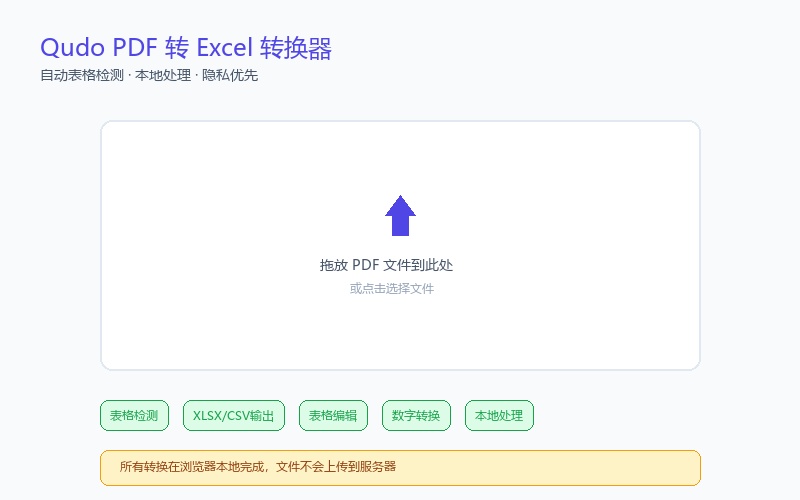
Step 1: Visit the tool page. Open https://www.qudo.cc/en/pdf-to-excel in a modern browser such as Chrome, Edge, Firefox or Safari. After the page loads, confirm the tool title is PDF to Excel Converter, and check whether the page shows privacy instructions such as local processing and no file upload.
Step 2: Upload PDF file. Click the upload area or drag a PDF file into the designated area. The tool supports PDF files of any size. For password-protected PDFs, you will be prompted to enter the password. After upload, the file information (name, size, page count) will be displayed.
Step 3: Wait for table detection. The tool automatically scans all pages and detects tables. A progress bar shows the current page being analyzed. This process may take a few seconds to a minute depending on the file size.
Step 4: Review detected tables. After detection completes, a list of detected tables is displayed. Review each table to ensure the detection is accurate. You can select or deselect tables to include or exclude them from the conversion.
Step 5: Edit tables (optional). Click on any table to expand it and edit the data if needed. Use the editing tools to add or delete rows and columns, or click directly on cells to modify content.
Step 6: Configure output settings. Choose the output format (XLSX or CSV), worksheet mode (for XLSX), and adjust other options as needed.
Step 7: Start conversion. Click the 'Create Excel File' button. The tool will generate the spreadsheet and prepare it for download. Do not close the browser tab during processing.
Step 8: Download the result. After conversion completes, the Excel file will be automatically downloaded. Open the file in Microsoft Excel or a compatible application to verify the data.

6. Privacy Protection Statement
Qudo PDF to Excel processes all files locally in your browser. PDF files are never uploaded to Qudo servers or any third-party servers.
The conversion algorithm runs entirely in JavaScript within your browser using PDF.js for parsing and SheetJS for Excel generation. No data is transmitted over the network during the conversion process.
After conversion, the original file and converted result remain on your device. Clear your browser cache if you want to completely remove traces of the processed files.
For documents containing sensitive information, using this tool is safer than online services that upload files to remote servers.
7. FAQ
Q1: Will the PDF file be uploaded to a server?
A: No. All processing is done locally in your browser. Files are never uploaded to any server.
Q2: Can the tool convert scanned PDFs?
A: No. Scanned PDFs (image-based) do not have a text layer and cannot be processed directly. You need to use OCR software first to add a text layer to the scanned PDF.
Q3: What types of tables can be detected?
A: The tool detects both ruled tables (with visible borders) and borderless tables (detected by text alignment). Complex tables with merged cells may not be detected perfectly.
Q4: Can I edit the detected data before conversion?
A: Yes. You can expand any detected table, edit cell content, add or delete rows and columns, and undo/redo changes before converting to Excel.
Q5: What is the difference between XLSX and CSV output?
A: XLSX is a full-featured Excel format that supports multiple worksheets, formatting, and data types. CSV is a simple text format with comma-separated values, compatible with all spreadsheet applications but without formatting or multiple sheets.
Q6: Can I convert multiple PDFs at once?
A: The current version processes one PDF at a time. For batch conversion, you need to process each file individually.
Q7: What browsers are supported?
A: The tool works on all modern browsers including Chrome, Edge, Firefox, and Safari. For best performance, use the latest version of your browser.
8. Important Notes
1. Always keep a backup of original PDF files before conversion.
2. Scanned PDFs (image-based) cannot be processed. Use OCR first to add a text layer.
3. Complex tables with merged cells may not be detected perfectly. Review and edit detected data before conversion.
4. Borderless table detection relies on text alignment and may produce inaccurate results for poorly formatted PDFs.
5. Very large files (over 100MB or 500+ pages) may cause memory issues on low-RAM devices.
6. Do not close the browser tab during conversion processing.
7. The tool processes all pages of the PDF. Page range selection is not currently supported.
8. CSV output includes UTF-8 BOM to ensure correct character encoding in Excel.
9. Number conversion may not work correctly for numbers with special formatting or thousand separators.
10. Auto column width is only available for XLSX output, not CSV.
11. The table editor supports up to 50 levels of undo/redo history.
12. Detected tables can be selectively included or excluded from the conversion.
9. Quick Checklist
☐ Confirmed the access address is https://www.qudo.cc/en/pdf-to-excel
☐ Kept a backup of the original PDF file
☐ Uploaded PDF and waited for table detection to complete
☐ Reviewed detected tables and verified accuracy
☐ Edited table data if needed (added/deleted rows or columns)
☐ Selected output format (XLSX or CSV)
☐ Configured worksheet mode and other options (for XLSX)
☐ Started conversion and waited for completion
☐ Downloaded the converted Excel file
☐ Opened the result in Excel to verify data accuracy