PDF to Word User Guide
Online Conversion · OCR Support · Local Processing · Privacy First
Tool URL: https://www.qudo.cc/en/pdf-to-word
Suitable for users who need to convert PDF documents to editable Word files for further editing, formatting changes, or content extraction.
All conversion is performed locally in your browser. Files are never uploaded to Qudo servers.
This guide is based on the actual interface of the Qudo PDF to Word Converter. It covers opening the page, uploading PDF files, selecting conversion modes, configuring OCR settings, and downloading the converted Word document. Follow this guide to complete the entire conversion workflow.
1. Tool Overview
Qudo PDF to Word is an online tool for converting PDF documents into editable Word (.docx) files. Users can choose between two conversion modes: Editable Text mode (extracts real text and rebuilds paragraph structure) and High-Fidelity Layout mode (renders each page as an image to preserve the original layout).
Qudo Tools is an online tool platform focused on privacy protection and browser-local processing. All PDF conversion is performed within your browser; files are never uploaded to servers.
Common use cases include: converting scanned contracts to editable Word files, extracting text from PDF reports for editing, converting academic papers for reformatting, and transforming PDF forms into editable documents.
2. Conversion Modes
The tool provides two conversion modes to meet different needs:
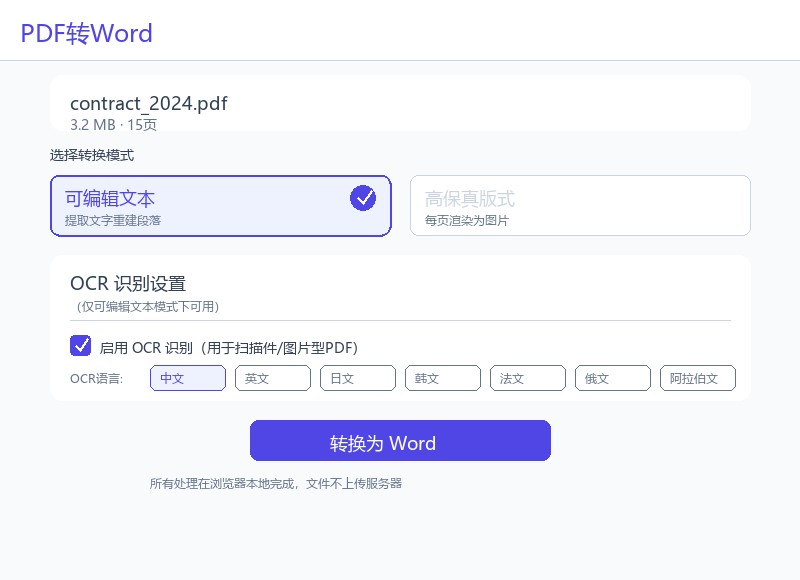
Editable Text Mode: Extracts real text content from the PDF and rebuilds paragraph structure. Detects bold text formatting and reconstructs line breaks intelligently. Best for text-based PDFs where you need to edit the content after conversion.
High-Fidelity Layout Mode: Renders each PDF page as a high-resolution PNG image (2x zoom) and embeds it into the Word document. Preserves the exact visual appearance of the original PDF, including complex layouts, tables, and graphics. Best for documents where visual fidelity is more important than text editability.
Note: Editable Text mode supports optional OCR (Optical Character Recognition) for scanned documents. High-Fidelity mode does not use OCR since it captures the visual appearance directly.
3. OCR Settings
OCR (Optical Character Recognition) is available only in Editable Text mode. It enables text extraction from scanned documents or image-based PDFs where text is stored as images rather than selectable characters.
When OCR is enabled, the tool uses Tesseract.js to perform text recognition directly in your browser. No data is sent to external servers.
Supported OCR languages include: Chinese, English, Japanese, Korean, French, Russian, and Arabic. The appropriate language model is loaded on demand.
Note: OCR processing takes longer than regular text extraction. For large scanned documents, the conversion may take several minutes. Ensure you have a stable browser session and do not close the tab during processing.
Tip: If your PDF contains both scanned images and selectable text, enabling OCR will process all pages. For mixed documents, consider whether OCR is necessary for your specific pages.
4. Usage Steps
Before starting, save the PDF files to be converted in an easy-to-find location and confirm the files are not corrupted. For important materials, keep a backup of the original files.
Step 1: Visit the tool page. Open https://www.qudo.cc/en/pdf-to-word in a modern browser such as Chrome, Edge, Firefox or Safari. After the page loads, confirm the tool title is PDF to Word Converter, and check whether the page shows privacy instructions such as local processing and no file upload.
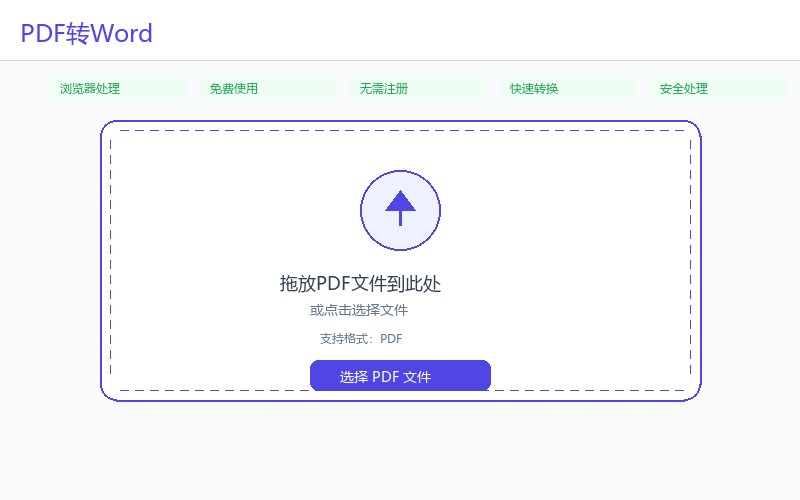
Step 2: Upload PDF file. Click the upload area or drag a PDF file into the designated area. The tool supports PDF files of any size. For password-protected PDFs, you will be prompted to enter the password. After upload, the file information (name, size, page count) will be displayed.
Step 3: Select conversion mode. Choose between Editable Text mode and High-Fidelity Layout mode. For text-based PDFs that need editing, select Editable Text. For visually complex PDFs where layout preservation is critical, select High-Fidelity Layout.
Step 4: Configure OCR settings (optional). If you selected Editable Text mode and your PDF contains scanned pages, enable the OCR option and select the appropriate language. Skip this step for text-based PDFs.
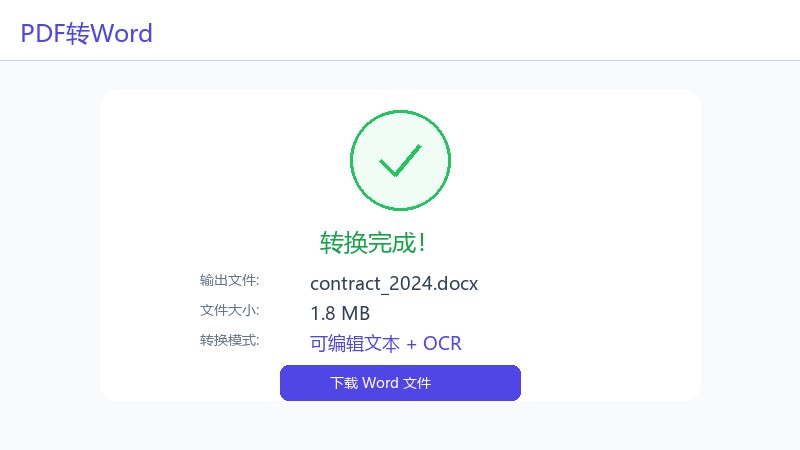
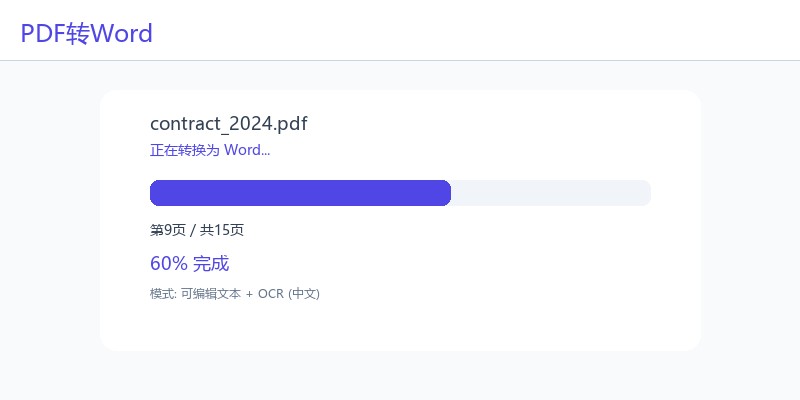
Step 5: Start conversion. Click the 'Convert to Word' button. The tool will display a progress bar showing the current page being processed. Do not close the browser tab during processing.
Step 6: Download the result. After conversion completes, the Word document (.docx) will be automatically downloaded. Open the file in Microsoft Word or a compatible editor to verify the content and formatting.
5. Privacy Protection Statement
Qudo PDF to Word processes all files locally in your browser. PDF files are never uploaded to Qudo servers or any third-party servers.
The conversion algorithm runs entirely in JavaScript within your browser using PDF.js for parsing and the docx library for Word generation. OCR uses Tesseract.js, which also runs locally.
After conversion, the original file and converted result remain on your device. Clear your browser cache if you want to completely remove traces of the processed files.
For documents containing sensitive information, using this tool is safer than online services that upload files to remote servers.
6. FAQ
Q1: Will the PDF file be uploaded to a server?
A: No. All processing is done locally in your browser. Files are never uploaded to any server.
Q2: Will the conversion preserve the original formatting?
A: Editable Text mode preserves text content and basic formatting (bold, paragraphs). High-Fidelity Layout mode preserves the exact visual appearance by embedding page images. Complex tables, multi-column layouts, and special fonts may not convert perfectly in Editable Text mode.
Q3: Can I convert scanned PDFs?
A: Yes. Enable OCR in Editable Text mode to extract text from scanned documents. The tool supports Chinese, English, Japanese, Korean, French, Russian, and Arabic OCR.
Q4: Can I convert password-protected PDFs?
A: Yes. If the PDF is password-protected, you will be prompted to enter the password. The tool can convert encrypted PDFs after decryption.
Q5: What is the maximum file size supported?
A: There is no hard limit, but very large files (over 100MB or 500+ pages) may cause memory issues on devices with limited RAM. For very large files, consider splitting them first using the PDF Split tool.
Q6: Can I convert multiple PDFs at once?
A: The current version processes one PDF at a time. For batch conversion, you need to process each file individually.
Q7: Why does OCR take so long?
A: OCR is computationally intensive, especially for large documents or complex pages. Processing runs in your browser and speed depends on your device's CPU. A 10-page scanned document may take 2-5 minutes.
Q8: Can I edit the converted Word document?
A: Yes. Editable Text mode produces fully editable .docx files. High-Fidelity Layout mode produces documents with embedded images that can be annotated but the text within images is not directly editable.
Q9: What browsers are supported?
A: The tool works on all modern browsers including Chrome, Edge, Firefox, and Safari. For best performance, use the latest version of your browser.
7. Important Notes
1. Always keep a backup of original PDF files before conversion.
2. Editable Text mode works best with text-based PDFs. For scanned documents, enable OCR.
3. High-Fidelity Layout mode produces non-editable image-based Word files.
4. Complex tables, multi-column layouts, and special fonts may not convert perfectly in Editable Text mode.
5. OCR processing takes significantly longer than regular text extraction.
6. For password-protected PDFs, the correct password is required before conversion.
7. Very large files (over 100MB) may cause memory issues on low-RAM devices.
8. Do not close the browser tab during conversion processing.
9. The output format is always .docx (Word document). No other output formats are available.
10. OCR supports Chinese, English, Japanese, Korean, French, Russian, and Arabic.
11. Digital signatures in PDFs will not be preserved in the converted Word file.
12. The tool processes all pages of the PDF. Page range selection is not currently supported.
8. Quick Checklist
☐ Confirmed the access address is https://www.qudo.cc/en/pdf-to-word
☐ Kept a backup of the original PDF file
☐ Selected appropriate conversion mode (Editable Text / High-Fidelity Layout)
☐ Enabled OCR if converting scanned documents
☐ Started conversion and waited for completion
☐ Downloaded the converted Word document
☐ Opened the result in Word to verify content and formatting
☐ Made any necessary manual adjustments to the document
☐ Cleaned up temporary files if needed