Split PDF User Guide
Online Splitting · Multiple Modes · Local Processing · Privacy First
Tool URL: https://www.qudo.cc/en/split-pdf
Suitable for users who need to extract specific pages from a PDF, split a large PDF into smaller files, or separate odd and even pages.
All splitting is performed locally in your browser. Files are never uploaded to Qudo servers.
This guide is based on the actual interface of the Qudo PDF Split tool. It covers opening the page, uploading PDF files, selecting split modes, configuring output settings, and downloading split results. Follow this guide to complete the entire splitting workflow.
1. Tool Overview
Qudo PDF Split is an online tool for splitting PDF files into multiple parts. Users can choose from five split modes: Extract Pages, Split Each Page, Split Every N Pages, Split by Ranges, and Split Odd/Even Pages. The tool supports thumbnail preview, page range input, and ZIP packaging for batch download.
Qudo Tools is an online tool platform focused on privacy protection and browser-local processing. All PDF splitting is performed within your browser; files are never uploaded to servers.
Common use cases include: extracting specific pages from a PDF, splitting a large PDF into chapter-based files, separating odd and even pages for double-sided printing, and extracting selected pages for sharing.
2. Split Modes
The tool provides five split modes to meet different needs:
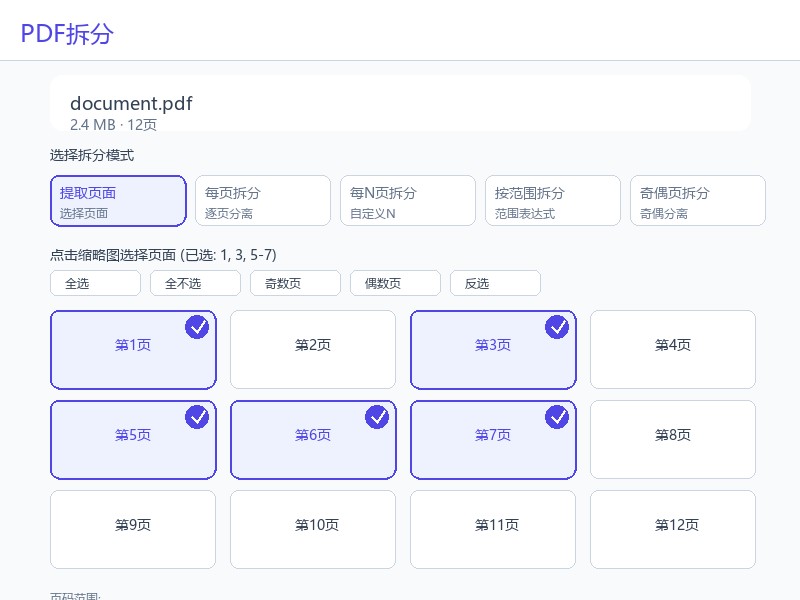
Extract Pages: Select specific pages from the PDF and extract them into a single file. Supports thumbnail grid click-to-select, Shift multi-select, and page range input (e.g. '1-3, 5, 7-9'). Quick buttons for Select All / Deselect All / Odd Pages / Even Pages / Invert Selection.
Split Each Page: Splits every page into a separate PDF file. A 10-page PDF will generate 10 individual files.
Split Every N Pages: Splits the PDF into files of N pages each. You can customize the N value (1 to total pages). For example, every 3 pages splits a 10-page PDF into 4 files (3+3+3+1).
Split by Ranges: Use semicolons to separate multiple output files, e.g. '1-3; 4-6; 7-10'. Real-time preview shows how many files will be generated and which pages each contains.
Split Odd/Even Pages: Separates odd and even pages. Options: 'Split Both' (two files), 'Odd Only', or 'Even Only'.
3. Output Settings
After selecting a split mode, you can configure the following output settings:
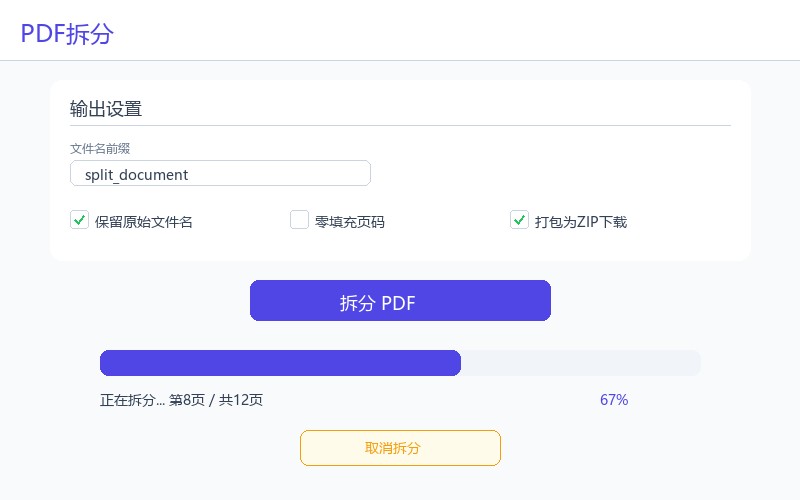
Filename Prefix: Custom prefix for output filenames. Helps organize files when splitting multiple PDFs.
Keep Original Filename: When enabled (default), uses the original PDF filename as the base name. Disable to use only the custom prefix.
Zero-Padded Page Numbers: When enabled, page numbers are formatted as '01, 02, 03' instead of '1, 2, 3'. Useful for maintaining sort order in file managers.
Package as ZIP: When enabled, multiple output files are automatically packaged into a ZIP file for batch download. Recommended when splitting into many files.
Note: For 'Extract Pages' mode, you can click thumbnails in the grid to select pages, use Shift+click for range selection, or enter page numbers directly in the input field using the format '1-3, 5, 7-9'.
4. Usage Steps
Before starting, save the PDF files to be split in an easy-to-find location and confirm the files are not corrupted. For important materials, keep a backup of the original files.
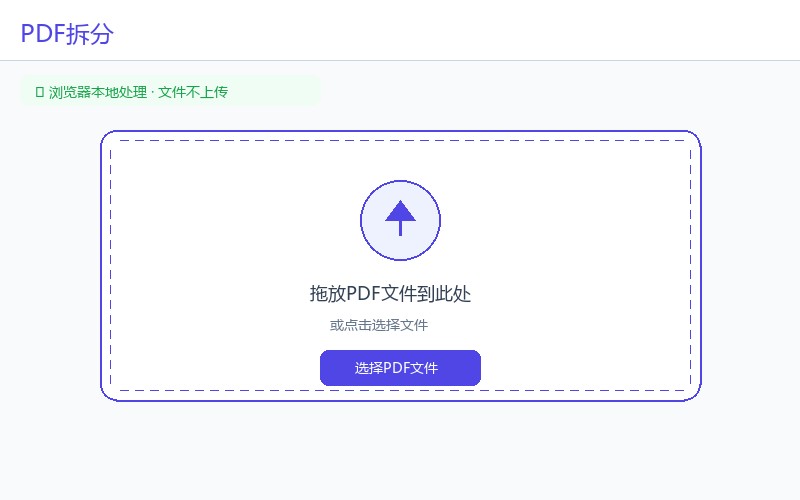
Step 1: Visit the tool page. Open https://www.qudo.cc/en/split-pdf in a modern browser such as Chrome, Edge, Firefox or Safari. After the page loads, confirm the tool title is PDF Split, and check whether the page shows privacy instructions such as local processing and no file upload.
Step 2: Upload PDF file. Click the upload area or drag a PDF file into the designated area. The tool supports PDF files of any size. For password-protected PDFs, you will be prompted to enter the password. After upload, thumbnail previews of all pages will be generated automatically.
Step 3: Select split mode. Choose from five modes: Extract Pages, Split Each Page, Split Every N Pages, Split by Ranges, or Split Odd/Even Pages. Each mode has its own specific input controls.
Step 4: Configure split parameters. Depending on the selected mode: for Extract Pages, click thumbnails or enter page ranges; for Split Every N Pages, set the N value; for Split by Ranges, enter range expressions like '1-3; 4-6; 7-10'.
Step 5: Adjust output settings (optional). Set filename prefix, enable zero-padded page numbers, and choose whether to package as ZIP.
Step 6: Start splitting. Click the 'Split PDF' button. The tool will display a progress bar during processing. You can cancel the operation at any time.
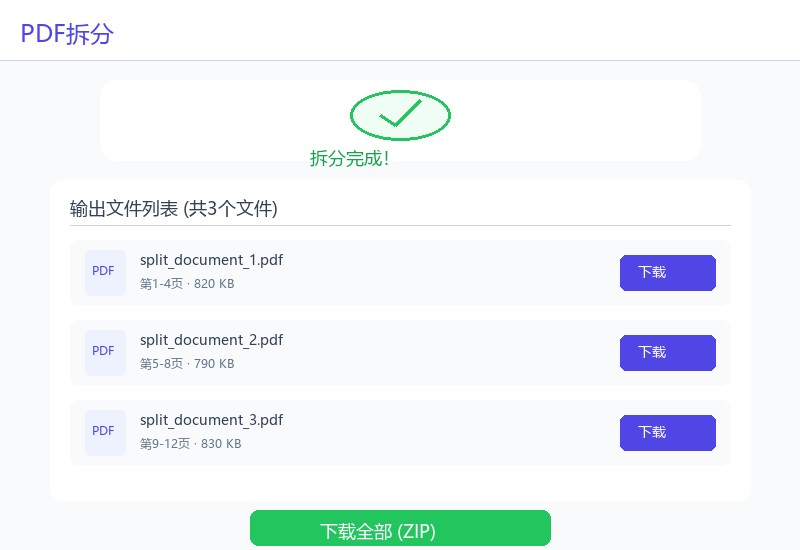
Step 7: Download results. After splitting completes, the tool displays a list of output files. Each file can be downloaded individually, or all files can be downloaded as a ZIP package.
5. Privacy Protection Statement
Qudo PDF Split processes all files locally in your browser. PDF files are never uploaded to Qudo servers or any third-party servers.
The splitting algorithm runs entirely in JavaScript within your browser using pdf-lib and pdf.js. No data is transmitted over the network during the splitting process.
After splitting, the original file and split results remain on your device. Clear your browser cache if you want to completely remove traces of the processed files.
For documents containing sensitive information, using this tool is safer than online services that upload files to remote servers.
6. FAQ
Q1: Will the PDF file be uploaded to a server?
A: No. All processing is done locally in your browser. Files are never uploaded to any server.
Q2: Will splitting affect page quality?
A: No. Splitting only extracts or reorganizes existing pages. The content, resolution, and quality of each page remain unchanged.
Q3: Can I split password-protected PDFs?
A: Yes. If the PDF is password-protected, you will be prompted to enter the password. The tool can split encrypted PDFs after decryption.
Q4: Will digital signatures be preserved?
A: Digital signatures are typically invalidated when a PDF is split, because the file content changes. Split pages will not retain the original signatures.
Q5: What happens to bookmarks and links?
A: Bookmarks and internal links may be lost or become invalid after splitting, especially if they reference pages in different output files. External links (URLs) are preserved.
Q6: What is the maximum file size supported?
A: There is no hard limit, but very large files (over 100MB or 500+ pages) may cause memory issues on devices with limited RAM. Consider splitting large files into smaller batches.
Q7: Can I split the same page into multiple files?
A: Yes. In 'Split by Ranges' mode, you can include the same page in multiple ranges, e.g. '1-5; 3-7' will create two files where page 3-5 appears in both.
Q8: Can I use this tool on mobile?
A: Yes. The tool is responsive and works on mobile browsers. However, processing very large PDFs may be slower on mobile devices.
Q9: What browsers are supported?
A: The tool works on all modern browsers including Chrome, Edge, Firefox, and Safari. For best performance, use the latest version of your browser.
7. Important Notes
1. Always keep a backup of original PDF files before splitting.
2. Digital signatures will be invalidated after splitting.
3. Bookmarks and internal links may be lost or become invalid.
4. For password-protected PDFs, the correct password is required before splitting.
5. Very large files (over 100MB) may cause memory issues on low-RAM devices.
6. Do not close the browser tab during splitting processing.
7. External links (URLs) in the PDF are preserved in split files.
8. Use 'Zero-Padded Page Numbers' to maintain sort order in file managers.
9. Enable 'Package as ZIP' when splitting into many files for easier download.
10. The 'Split by Ranges' mode supports real-time preview of split results.
11. Thumbnail previews are loaded in batches (5 pages per batch) for large PDFs.
12. Split files cannot be automatically merged back. Use the PDF Merge tool if needed.
8. Quick Checklist
☐ Confirmed the access address is https://www.qudo.cc/en/split-pdf
☐ Kept a backup of the original PDF file
☐ Selected appropriate split mode (Extract/Each/Every N/Ranges/Odd-Even)
☐ Configured split parameters (page selection, N value, or ranges)
☐ Adjusted output settings if needed (prefix, zero-padding, ZIP)
☐ Started splitting and waited for completion
☐ Downloaded all split result files
☐ Opened result files to verify page content and order
☐ Cleaned up temporary files if needed